
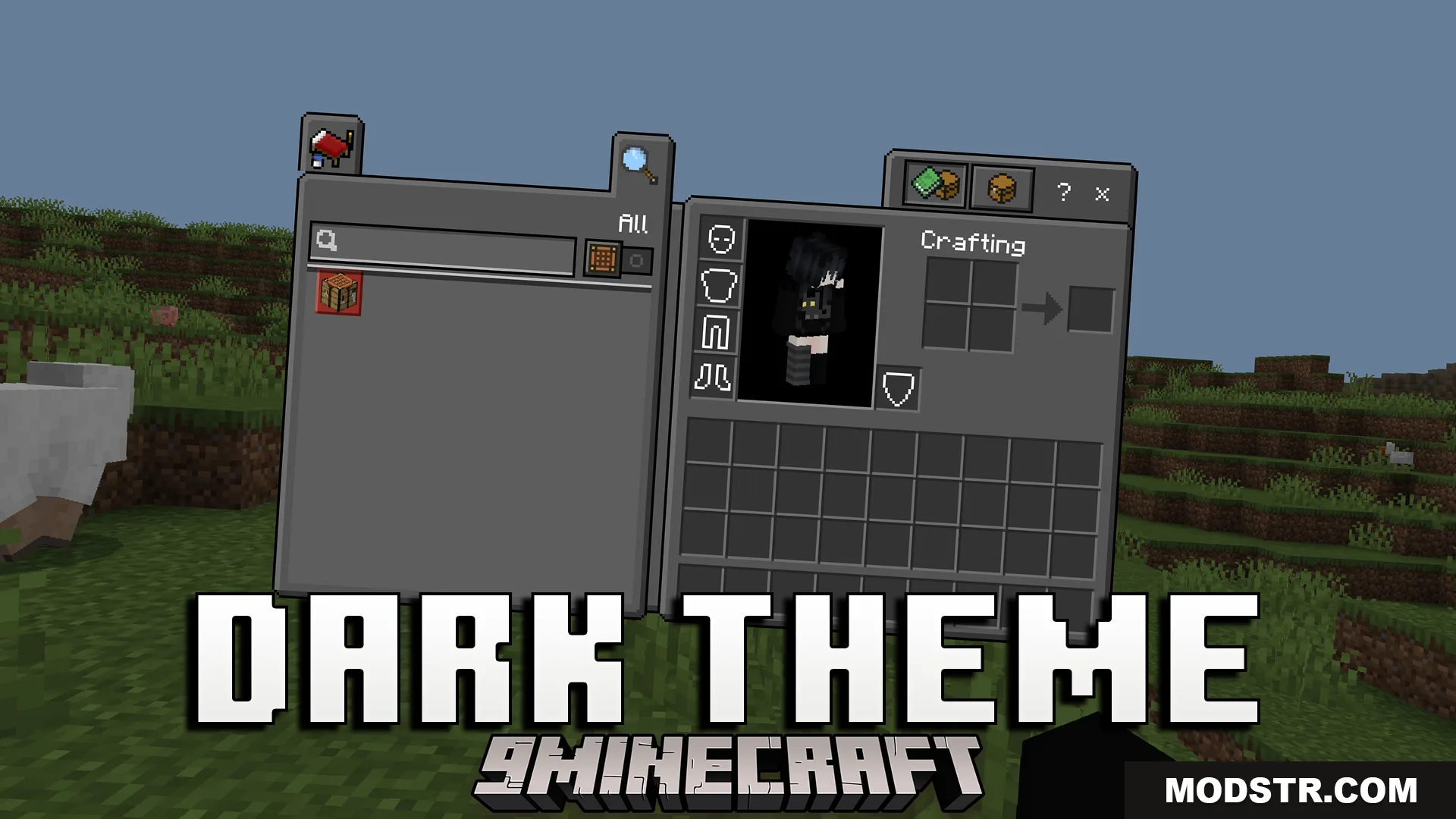
Dark Theme Texture Pack (26.x, 1.21) – Dark Mode UI For Your Settings And Inventory Screens
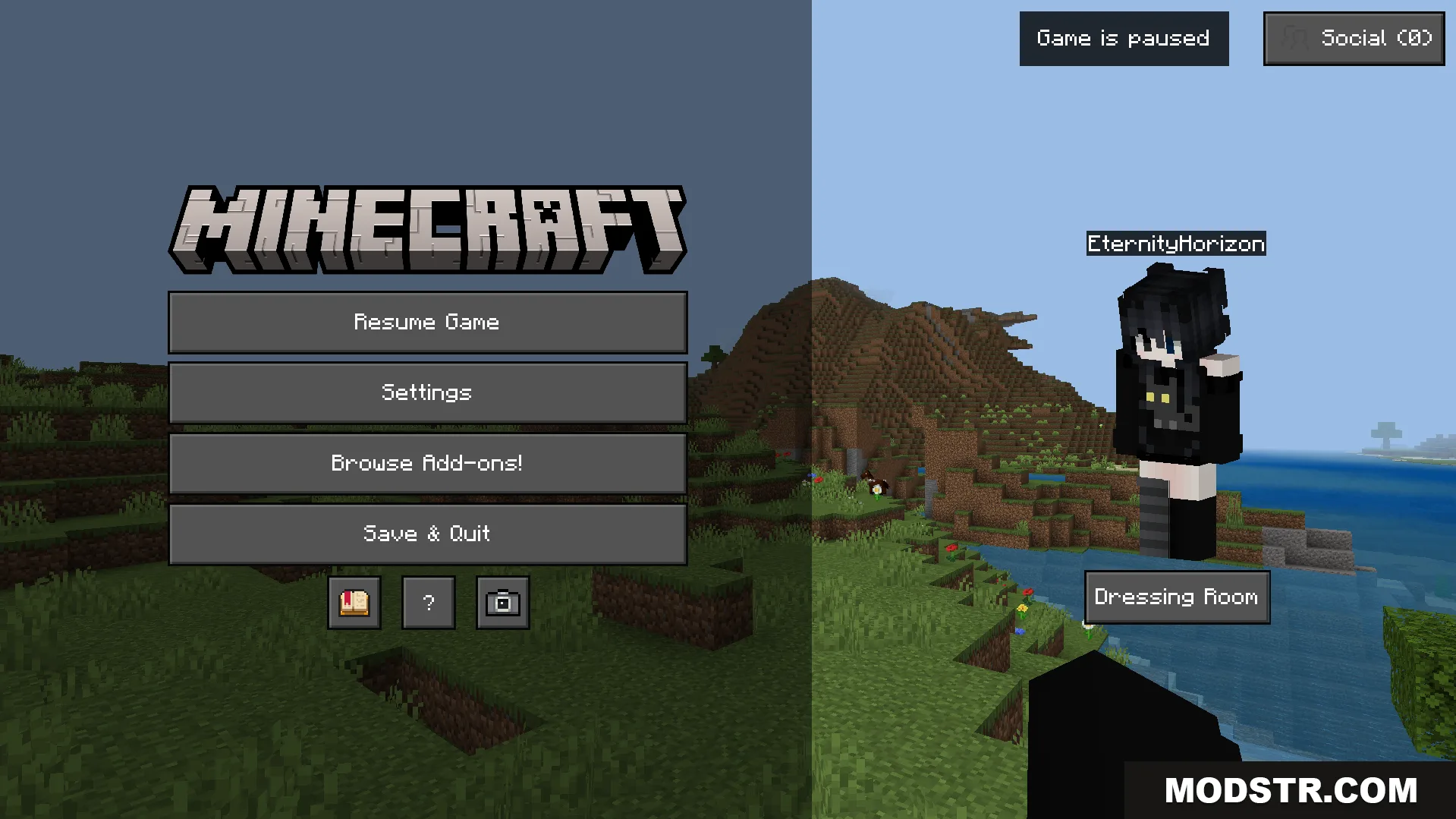
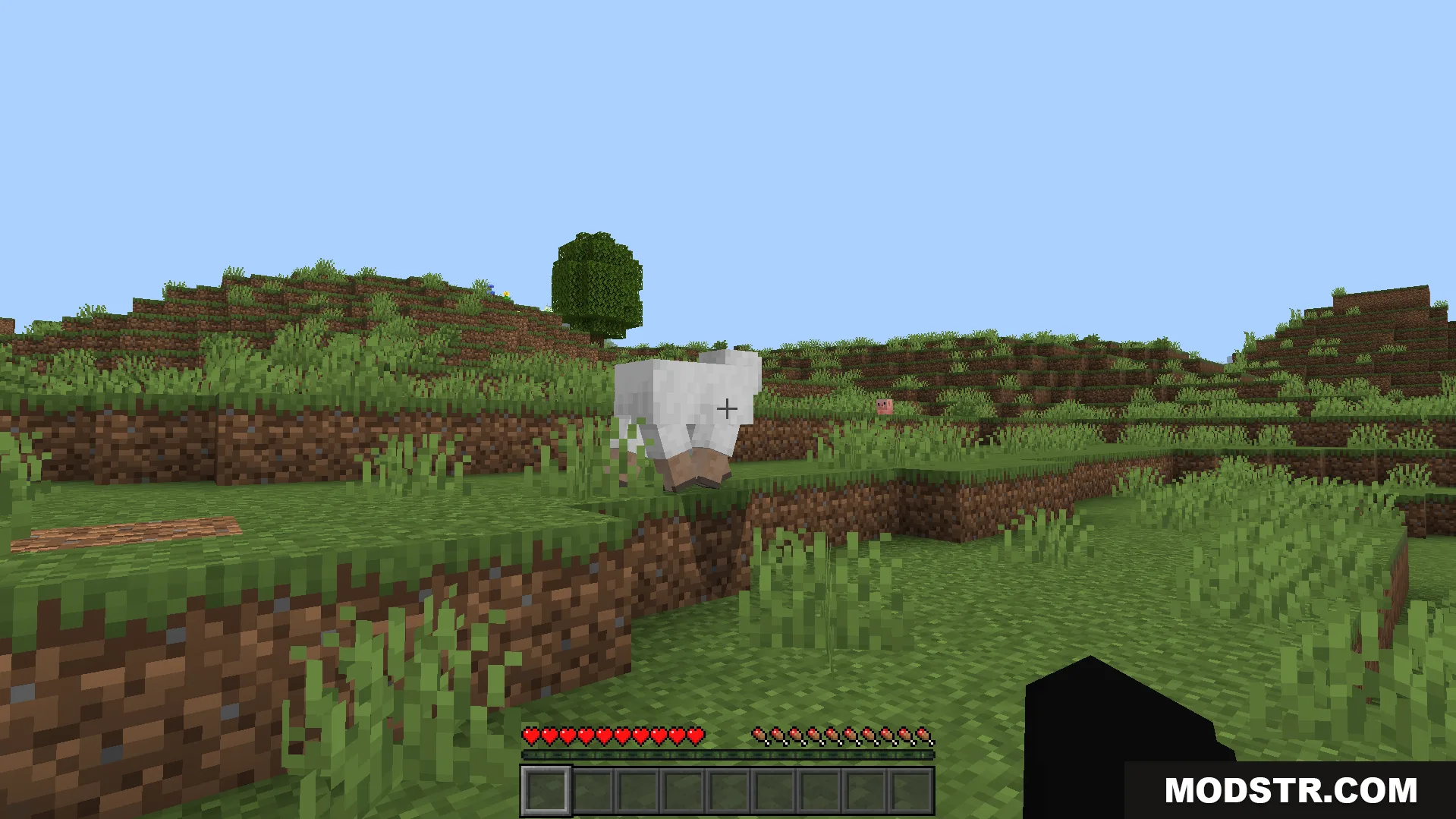
Dark Theme Texture Pack reskins your game menus and inventory screens with a dark color scheme. Choose between two dark mode options to customize your UI.
- 1.21
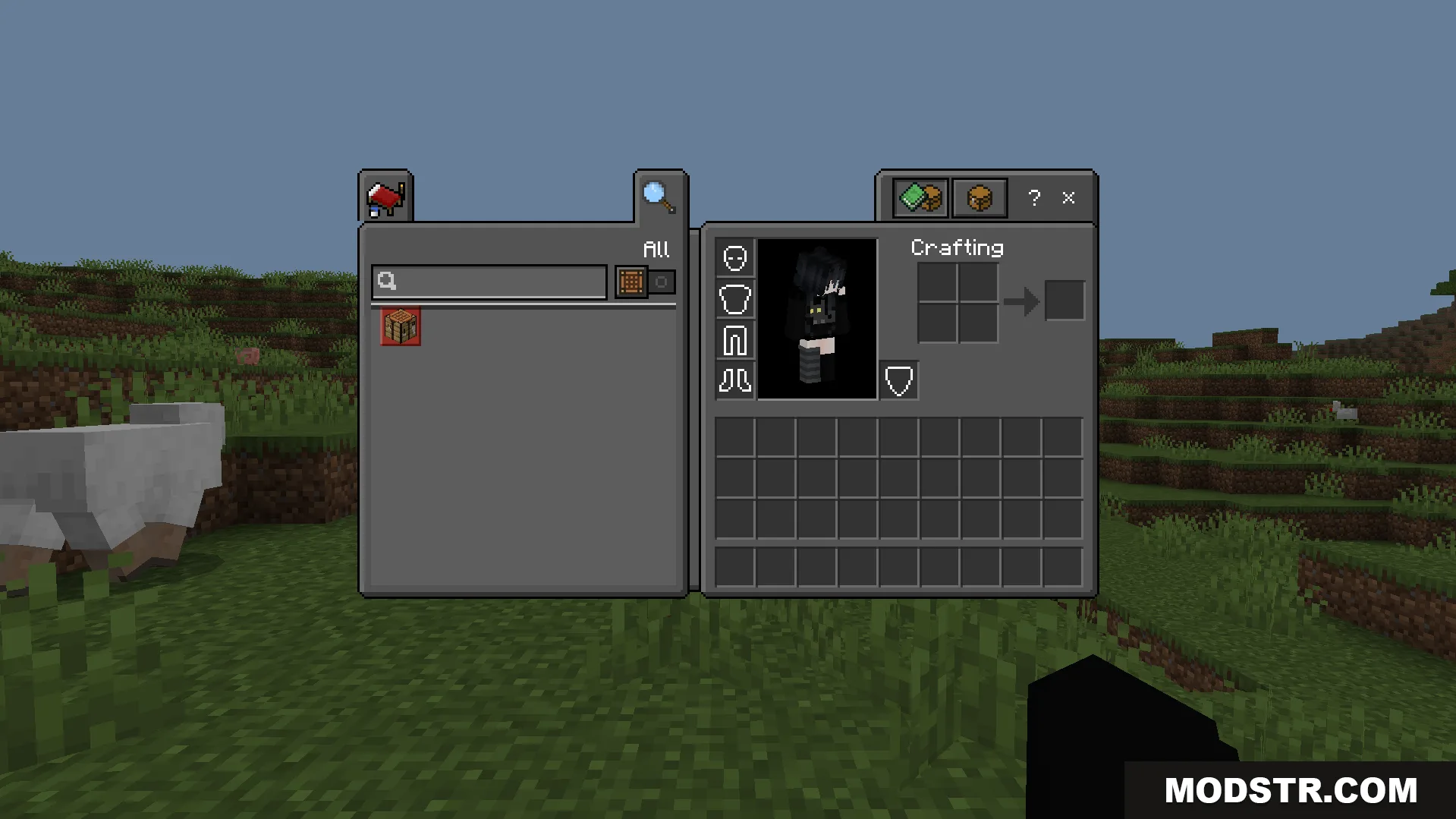
Dark Theme Texture Pack applies dark styling to your game menus, settings, and inventory screens. It works as an extension for the Deesse UI pack and gives you the option to select between different dark mode configurations for a customized look.
Features
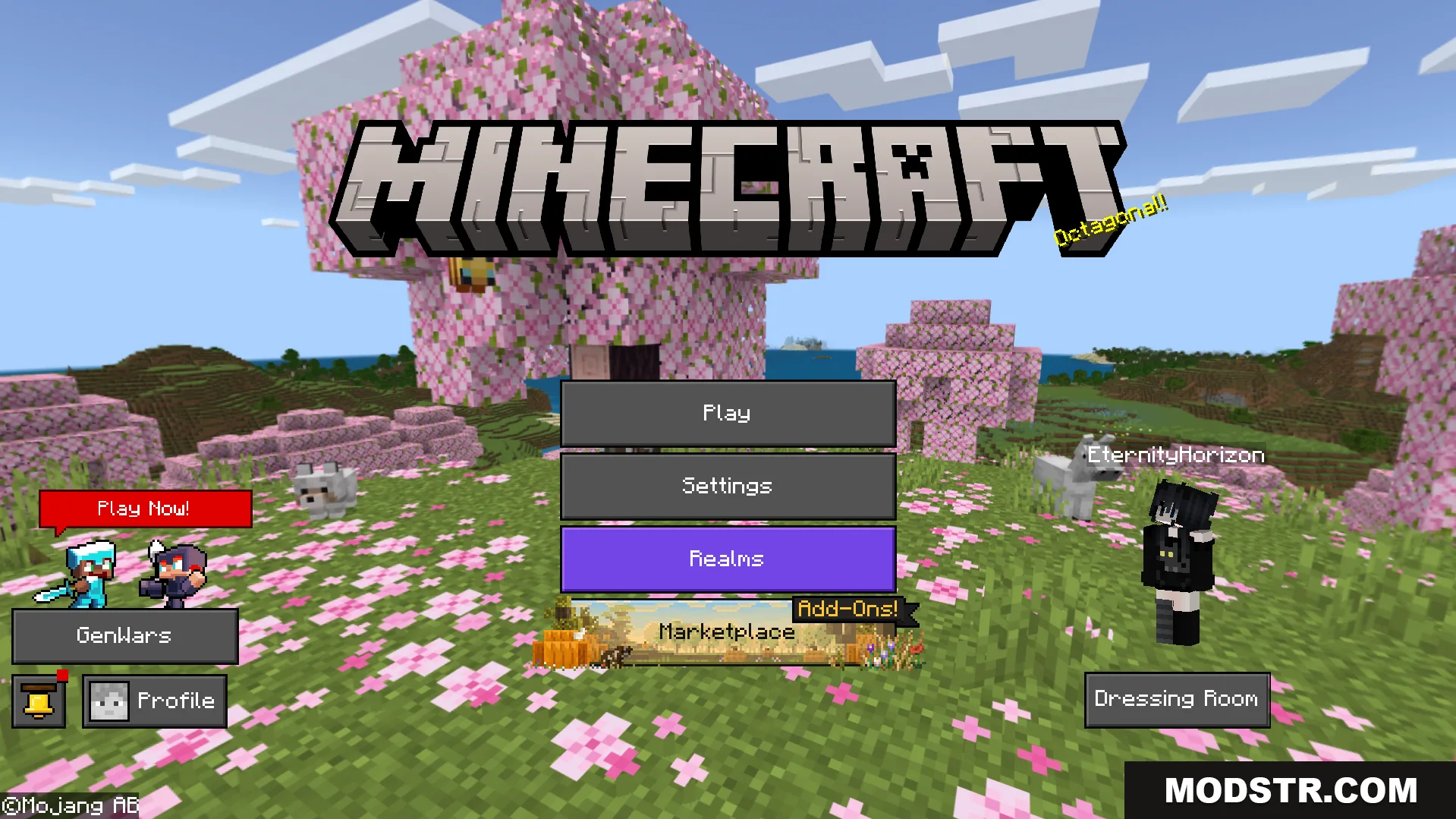
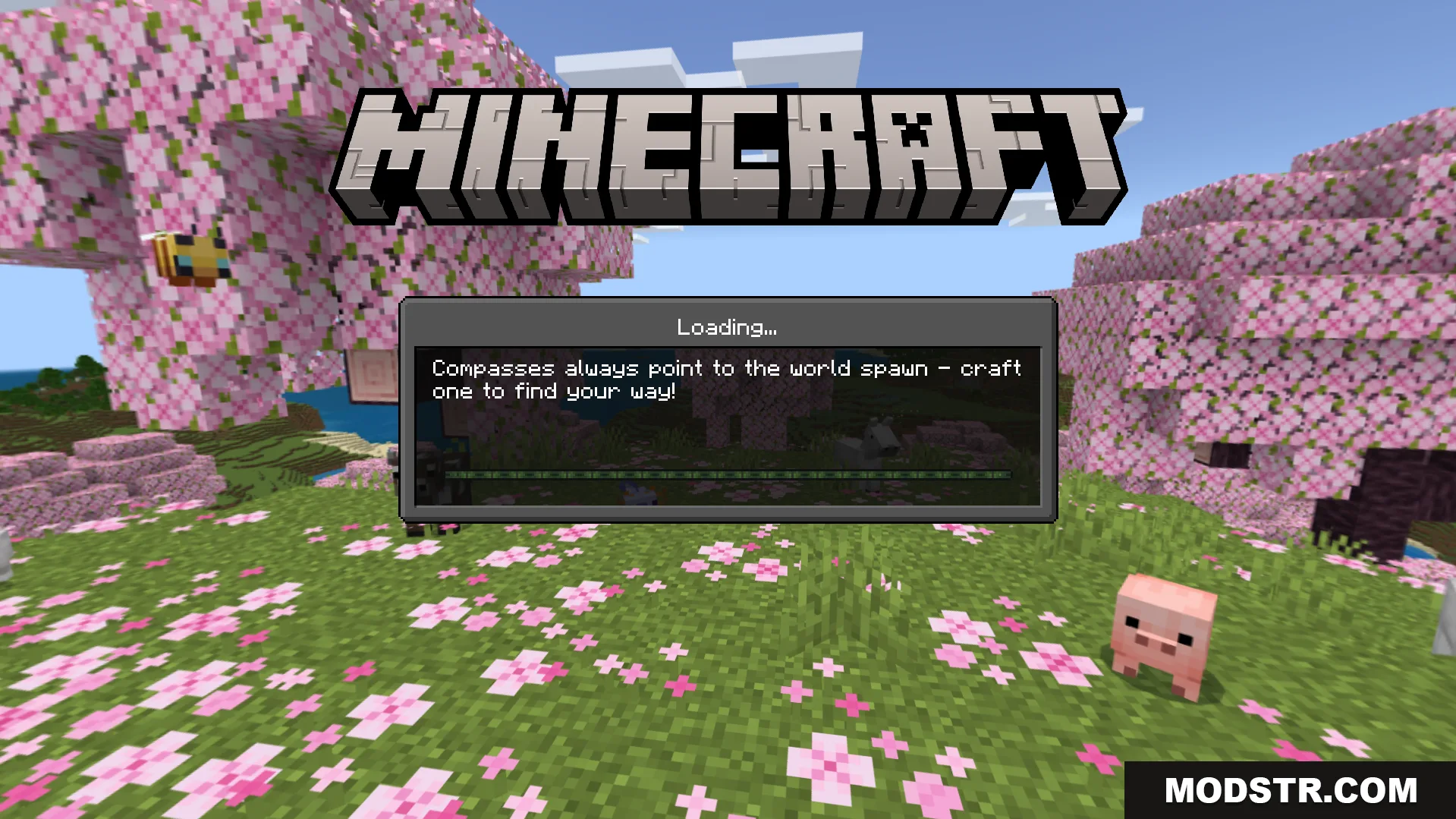
- Dark background and custom buttons for the main menu.
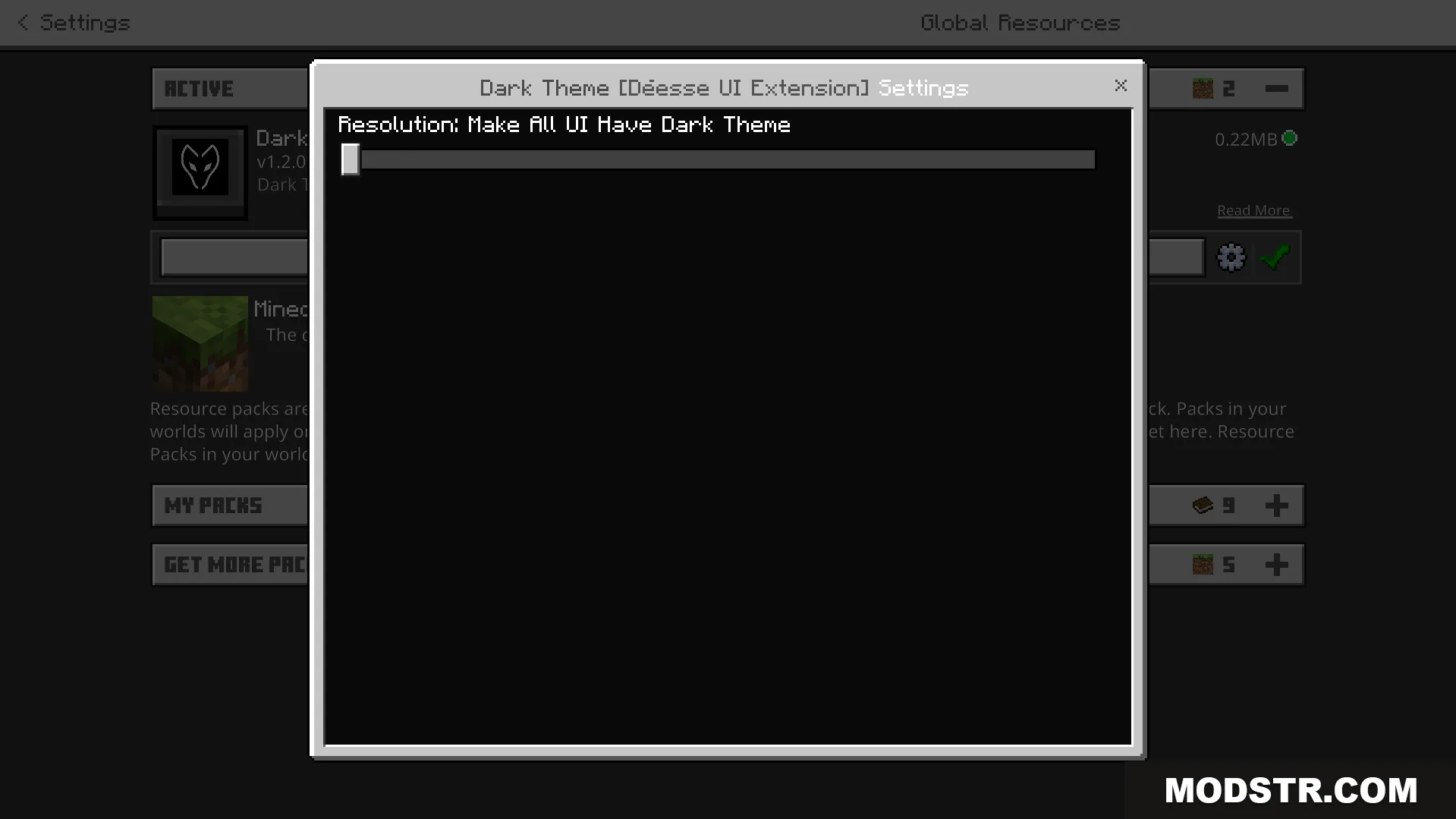
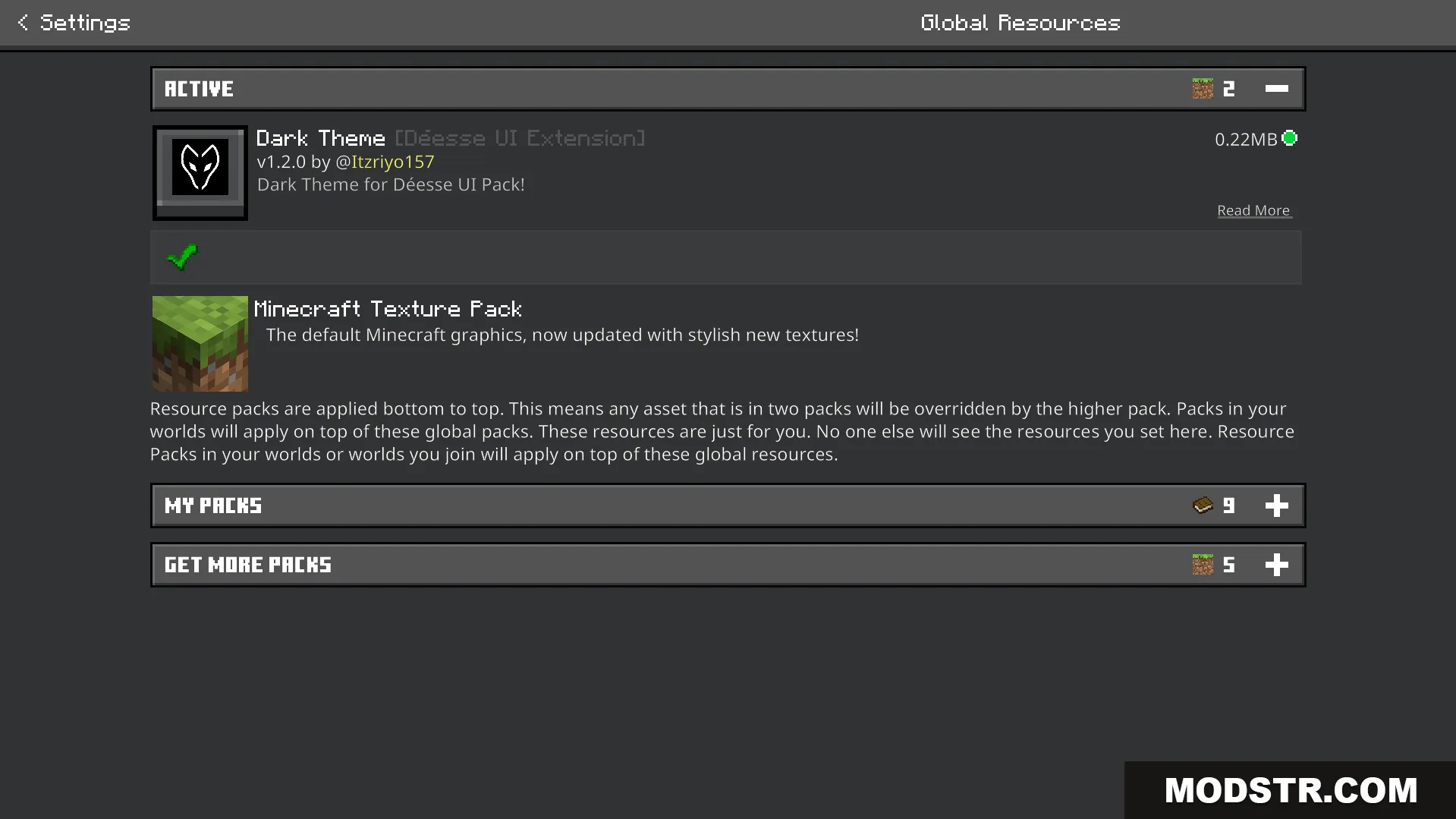
- Dark color scheme applied to the settings menu.
- Dark theme option for creative mode inventory.
- Updated chest inventory screen with new utility buttons.
- Two subpack choices for different menu customization levels.
Configuration
The pack includes a configuration slider to choose between two subpack options. The default mode applies dark styling only to custom screens. The second mode extends dark theming to all vanilla and custom menus.
Installation
- Download the texture pack file for your Minecraft version.
- Open the Minecraft launcher and navigate to the Resource Packs section.
- Click the folder icon to open your resourcepacks directory.
- Place the downloaded file in this folder.
- Select the pack in the Resource Packs menu and move it above any conflicting packs.
Compatibility
This texture pack is designed for Minecraft 1.21 and version 26.x. It functions as an extension to the Deesse UI pack, so compatibility with that pack or similar UI modifications may affect appearance.
DOWNLOAD FILES
- mcpack
- mcpack