
Anytag 9minecraft Data Pack (26.2) – Organize Bases with Floating Text
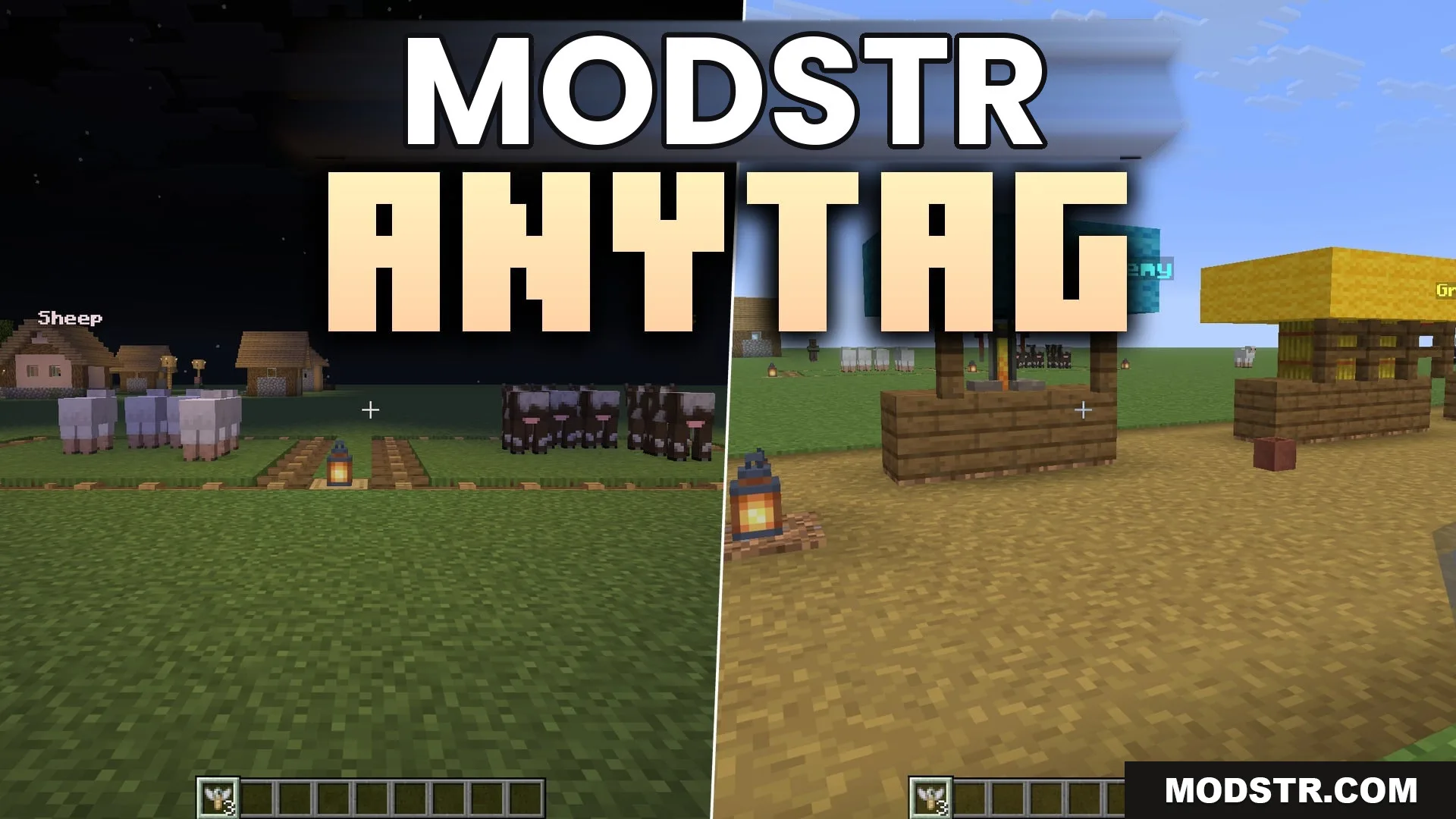
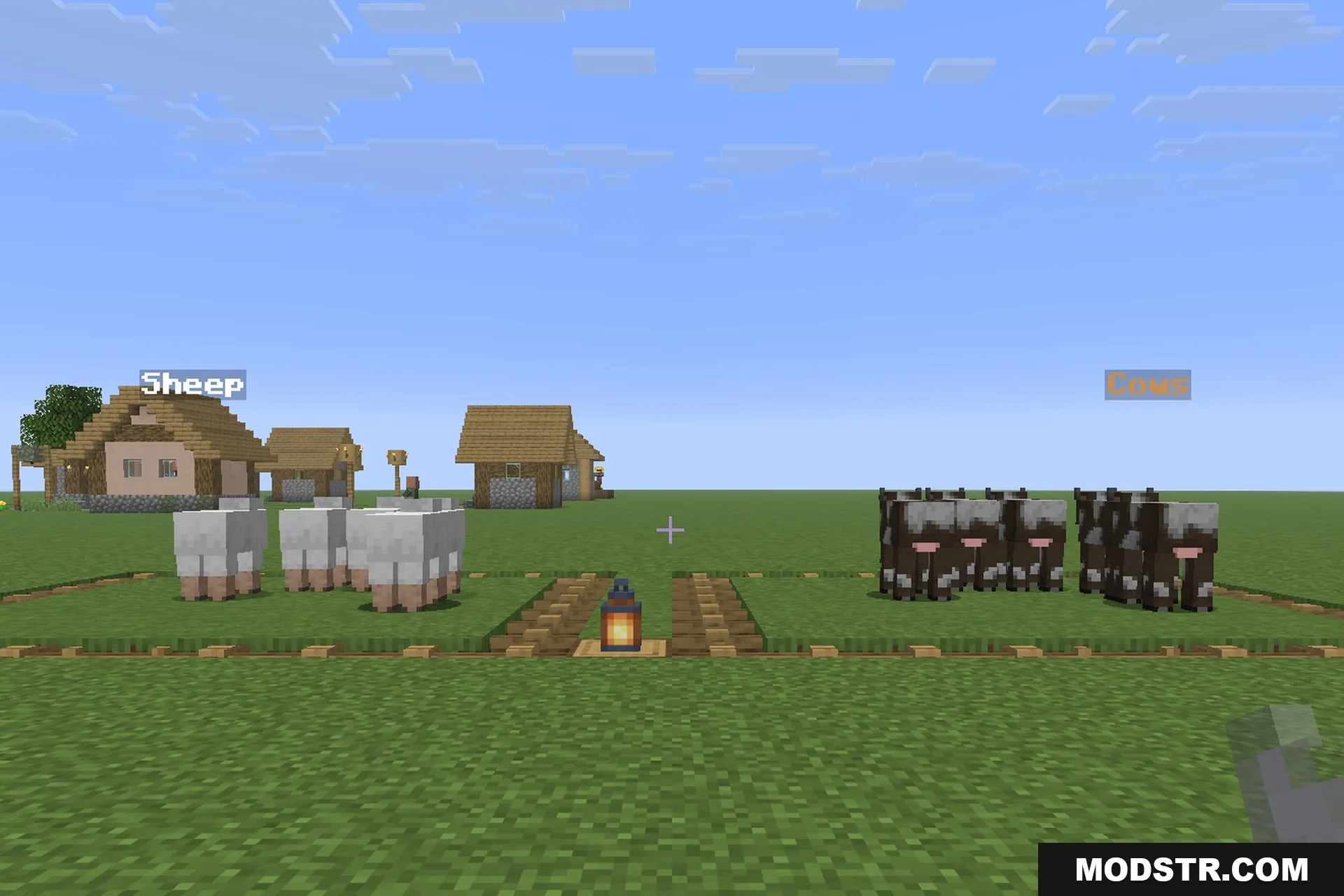
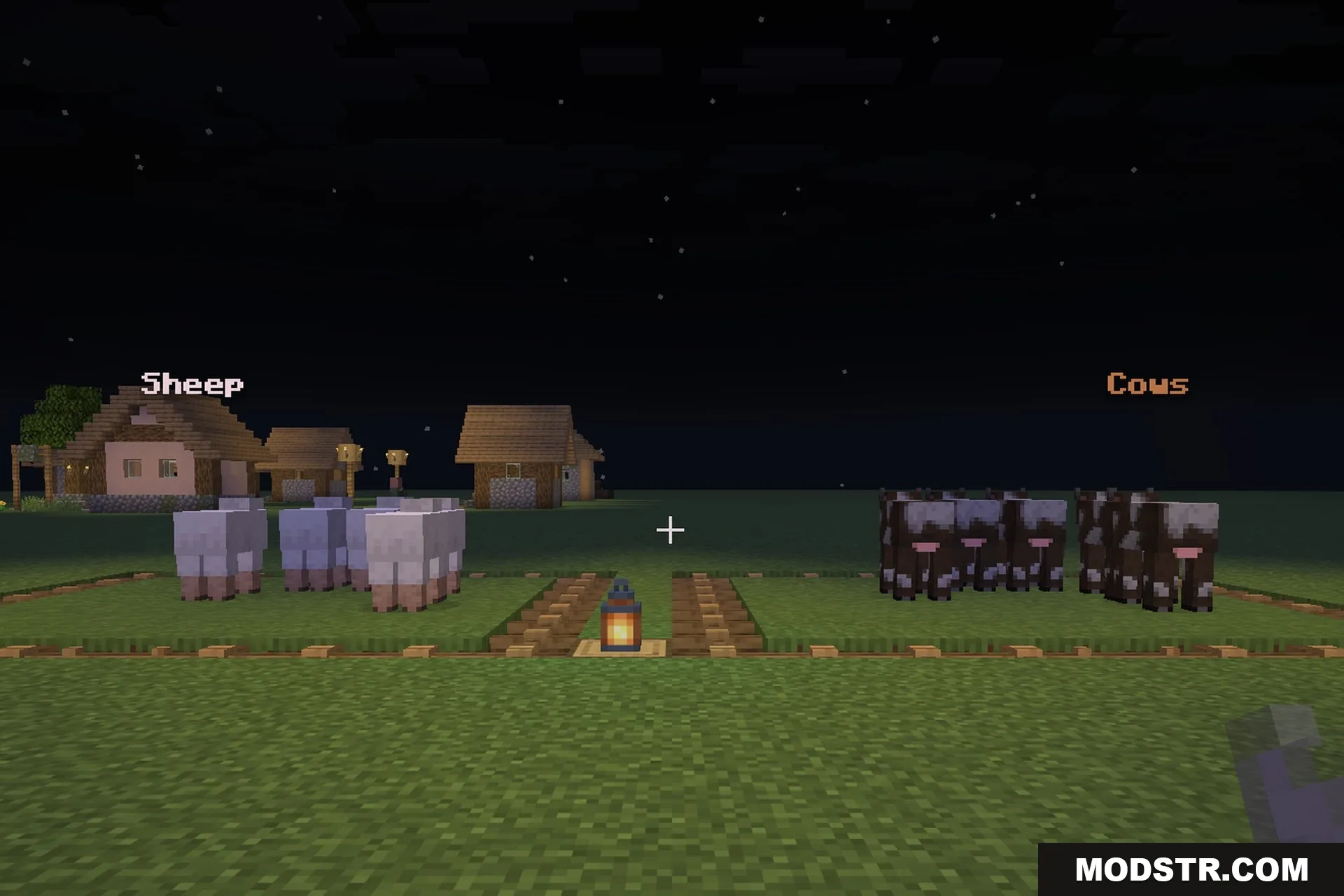
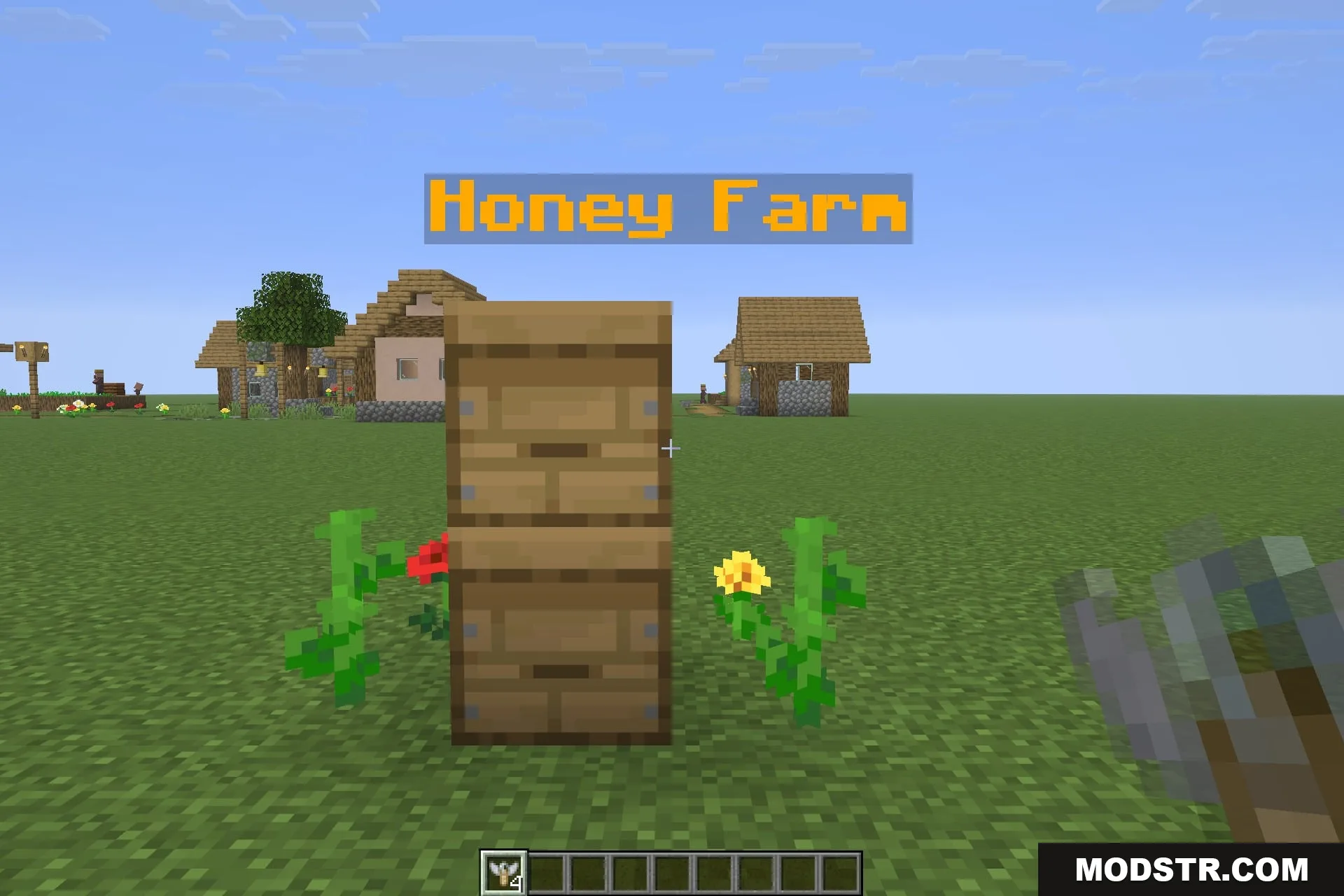
Anytag Data Pack provides a labeling tool for Minecraft worlds, allowing players to display floating text next to blocks. Ideal for organized bases, this pack enhances clarity without traditional signs.
Anytag Data Pack is a labeling tool designed for players who need to manage expansive bases. It adds a craftable item that enables users to write a line of text and display it in the air next to any block they choose.
To create this item, combine a name tag and a sign from any wood type. After naming the item on an anvil, right-click on the desired block to leave the text floating next to it. The floating label retains its color and formatting based on the name provided.
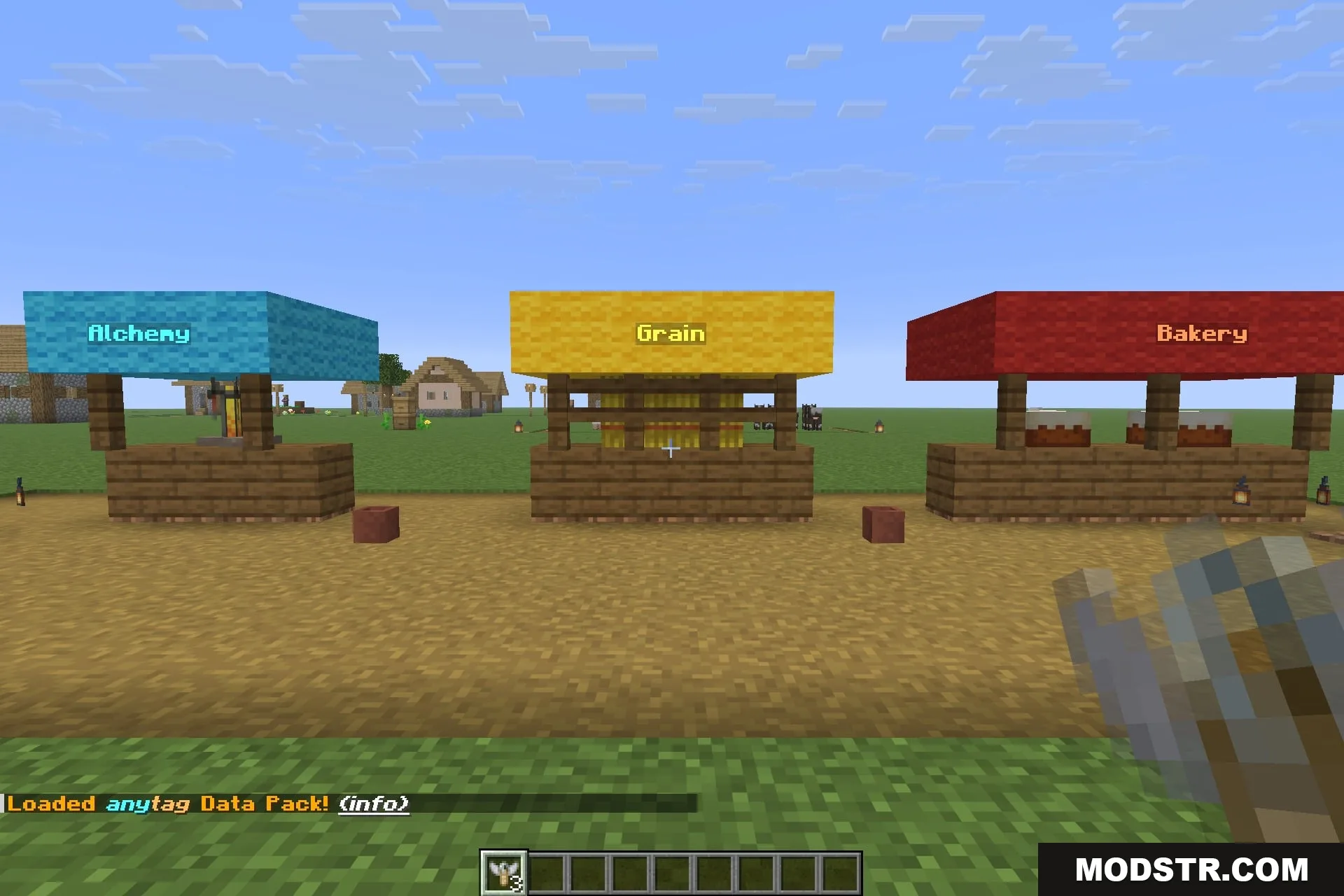
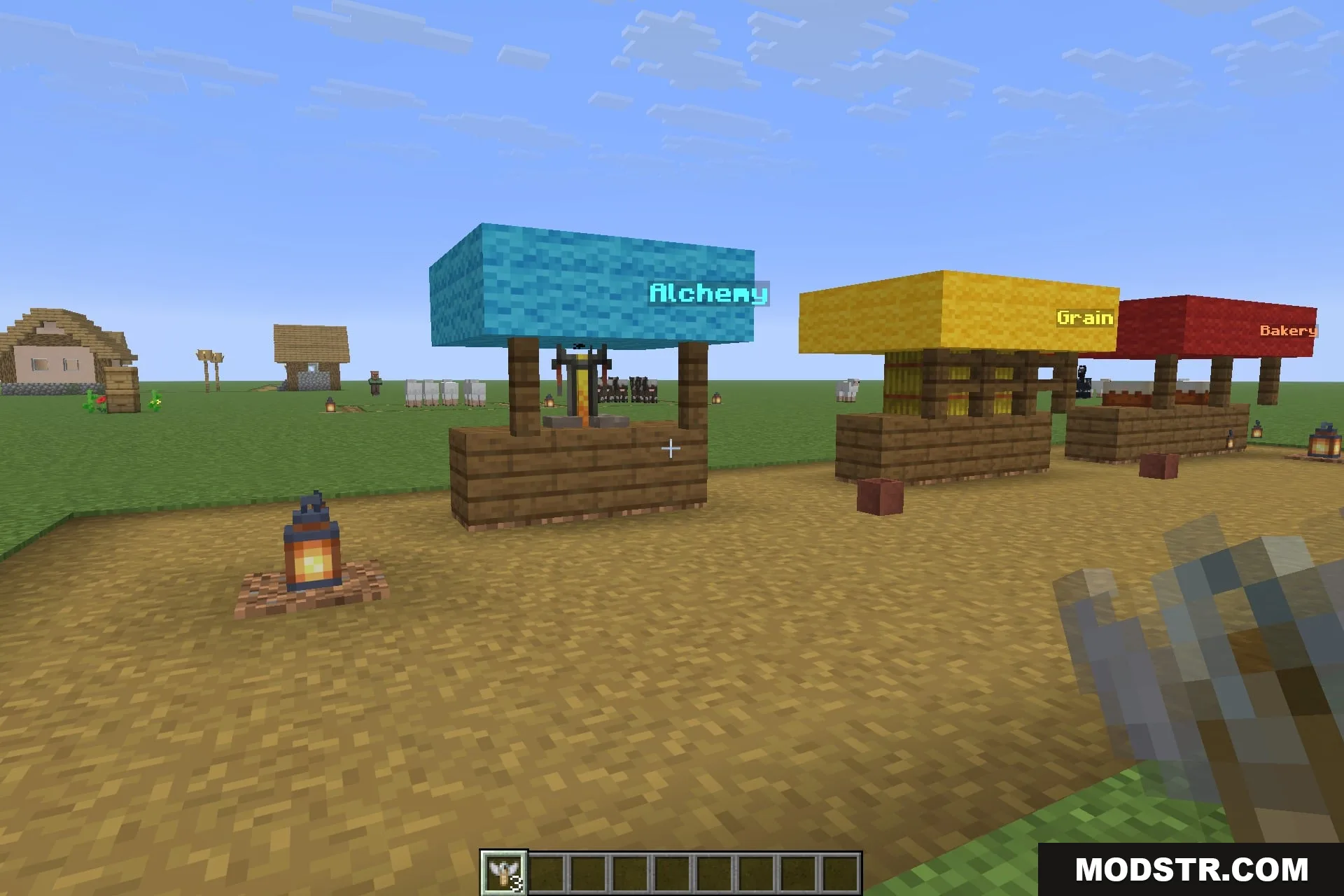
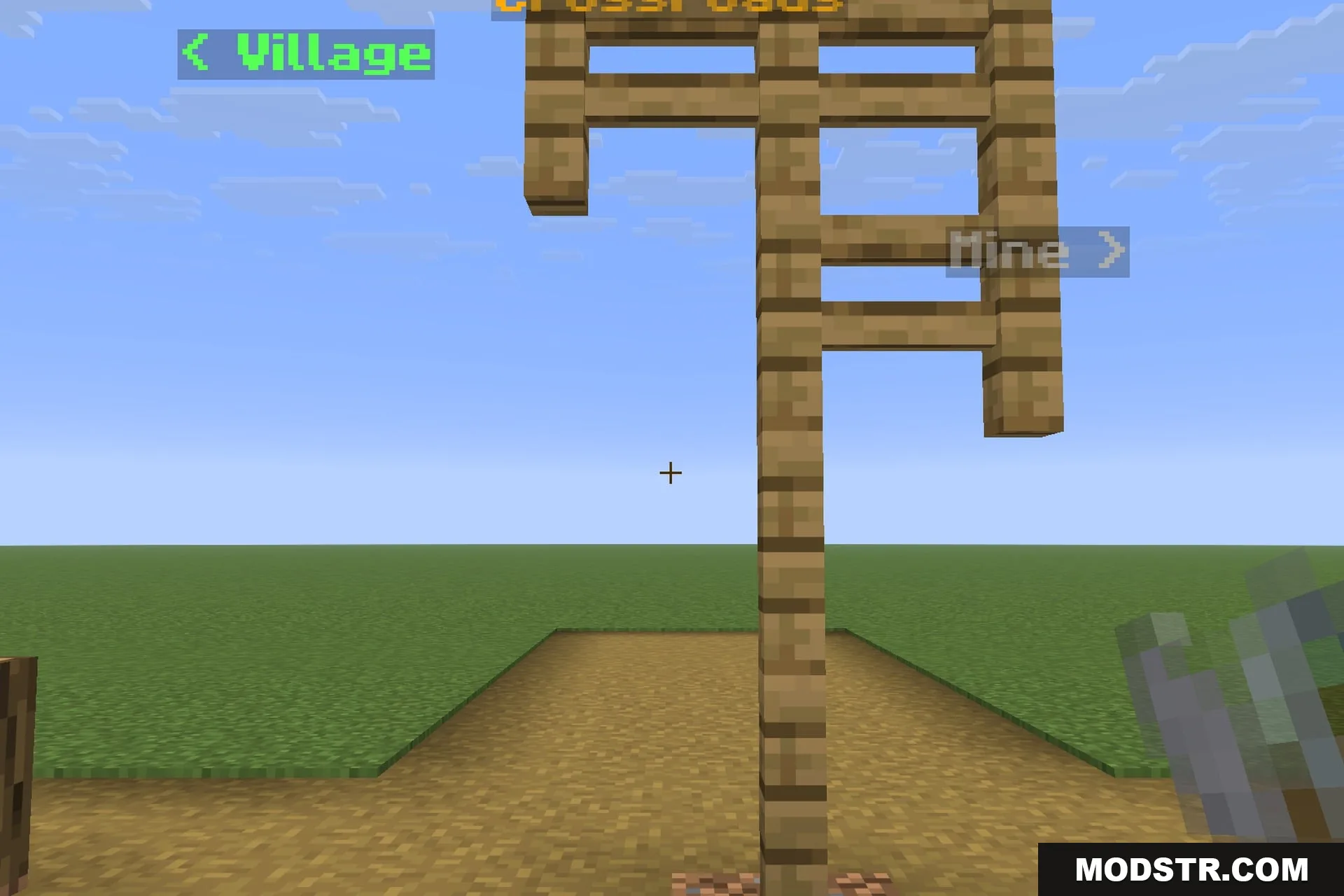
The labels function as independent entities, meaning they do not attach to surfaces, do not occupy block space, and remain in place even if the block they relate to is modified. This allows for usage in areas where signs cannot be placed, such as beside fence gates or above crop beds.
Removing a label is straightforward. Players can strike the label to receive a plain name tag back or right-click it to reclaim the original item for reuse. The data pack also includes two texture packs, one at 16x and one at 32x, to ensure that the item icon matches the player's resolution preferences.
Features:
- One craftable item: a name tag plus a sign of any wood type.
- Name it on an anvil and right-click a block to leave that text floating beside it.
- Colour and formatting from the name are kept on the floating label.
- Labels hang in open air, so they work where a sign will not fit.
- They occupy no block space and stay put when the build behind them changes.
- Strike a label to recover a name tag, or right-click it to recover the item itself.
- Includes matching 16x and 32x texture packs for the item icon.
- Adds nothing else: no new blocks, no altered recipes, no world generation changes.
Installation:
- Download the data pack file.
- Locate your world's folder in the Minecraft saves directory.
- Navigate to the 'datapacks' folder within your world folder.
- Place the downloaded data pack file into the 'datapacks' folder.
- Load your world and use the command '/reload' to activate the data pack.
Screenshots:
DOWNLOAD FILES
- resource