
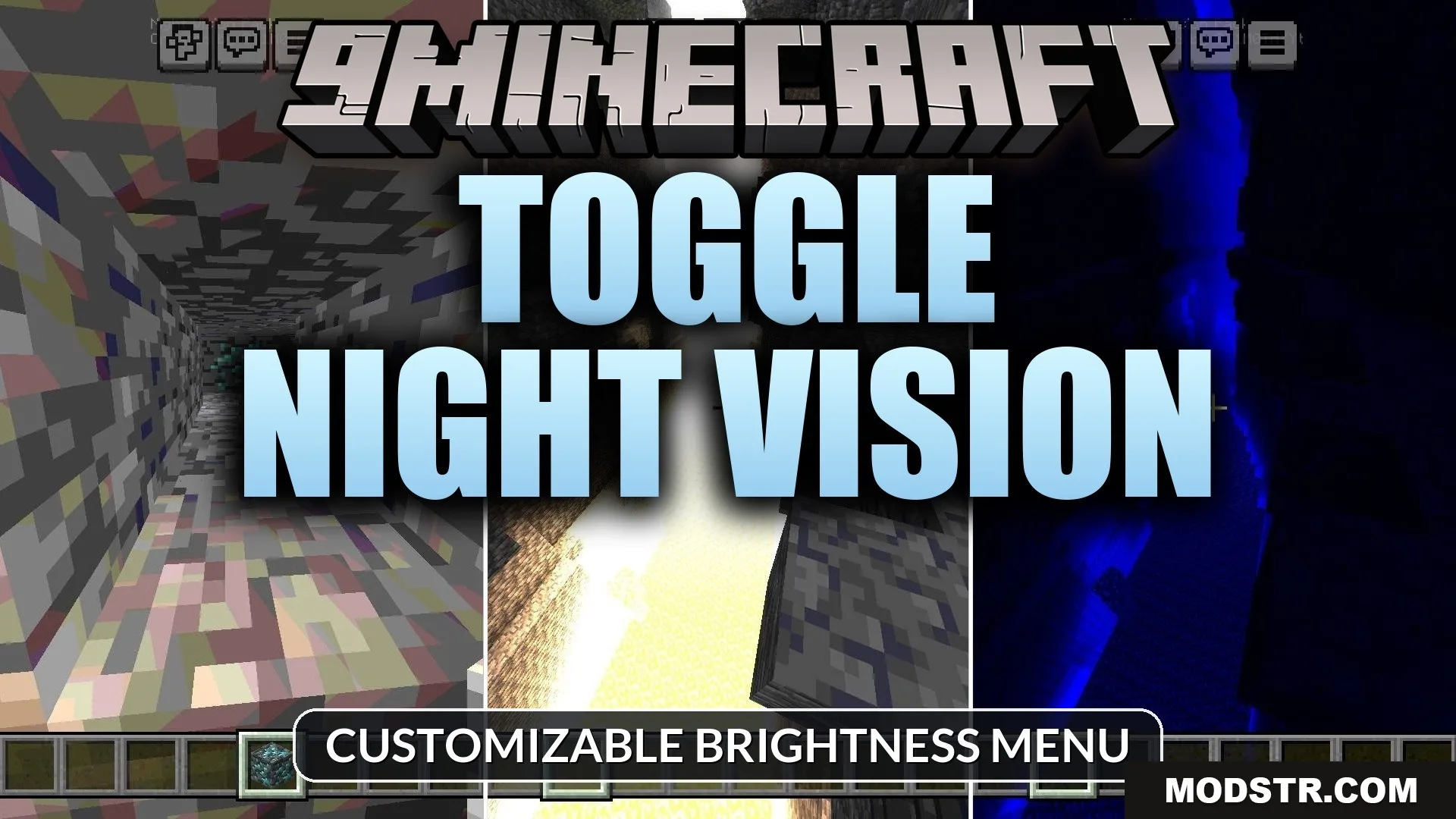
Toggle Night Vision Shader (26.x, 1.21) – Customizable Brightness Menu
Customizable night vision shader with adjustable brightness and color options. Explore caves easily with a toggleable on-screen menu for both mobile and desktop.
- 1.21
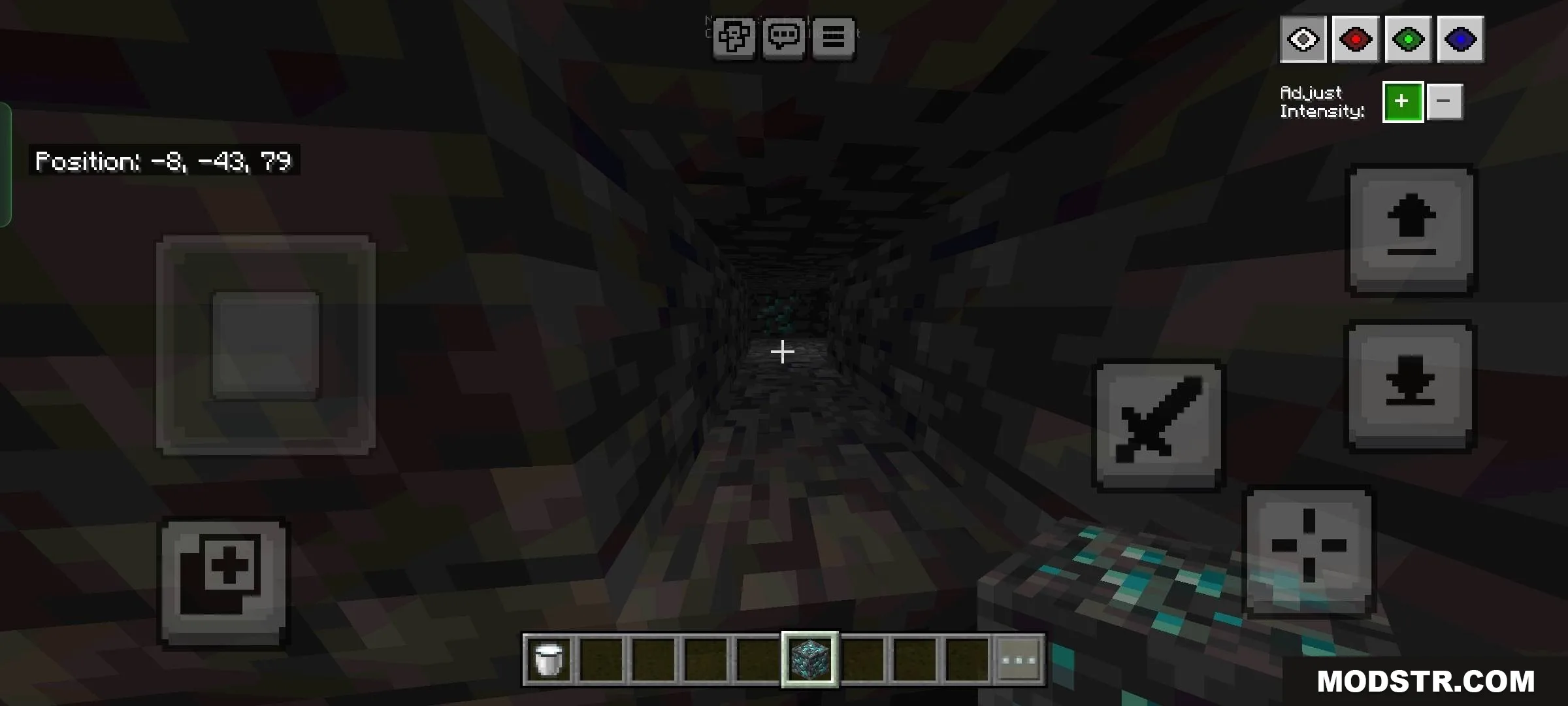
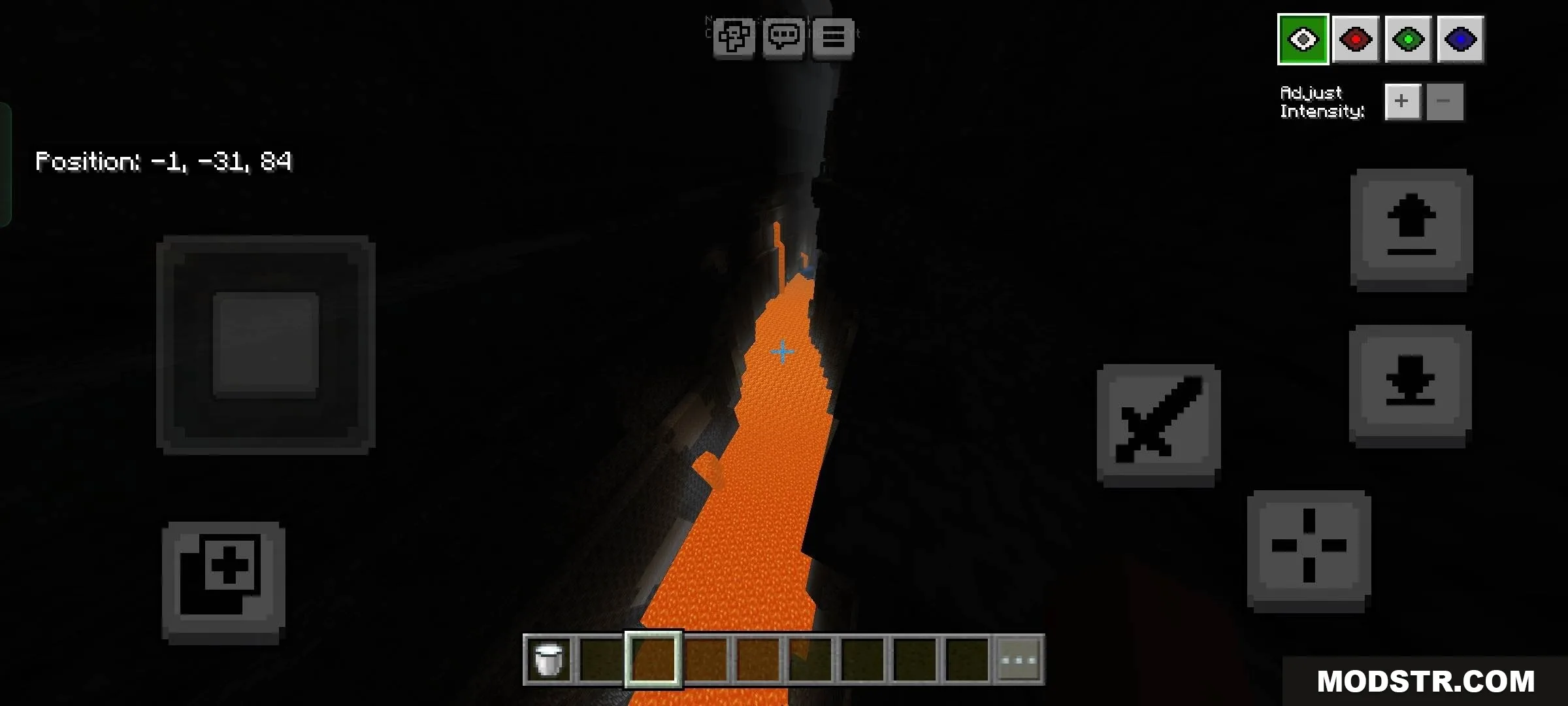
Toggle Night Vision Shader adds a customizable lighting overlay to help you see in dark areas without placing torches. This shader includes an on-screen menu to adjust brightness and color in real time, making it useful for cave exploration and ore hunting. It works on both mobile and desktop versions.
Features
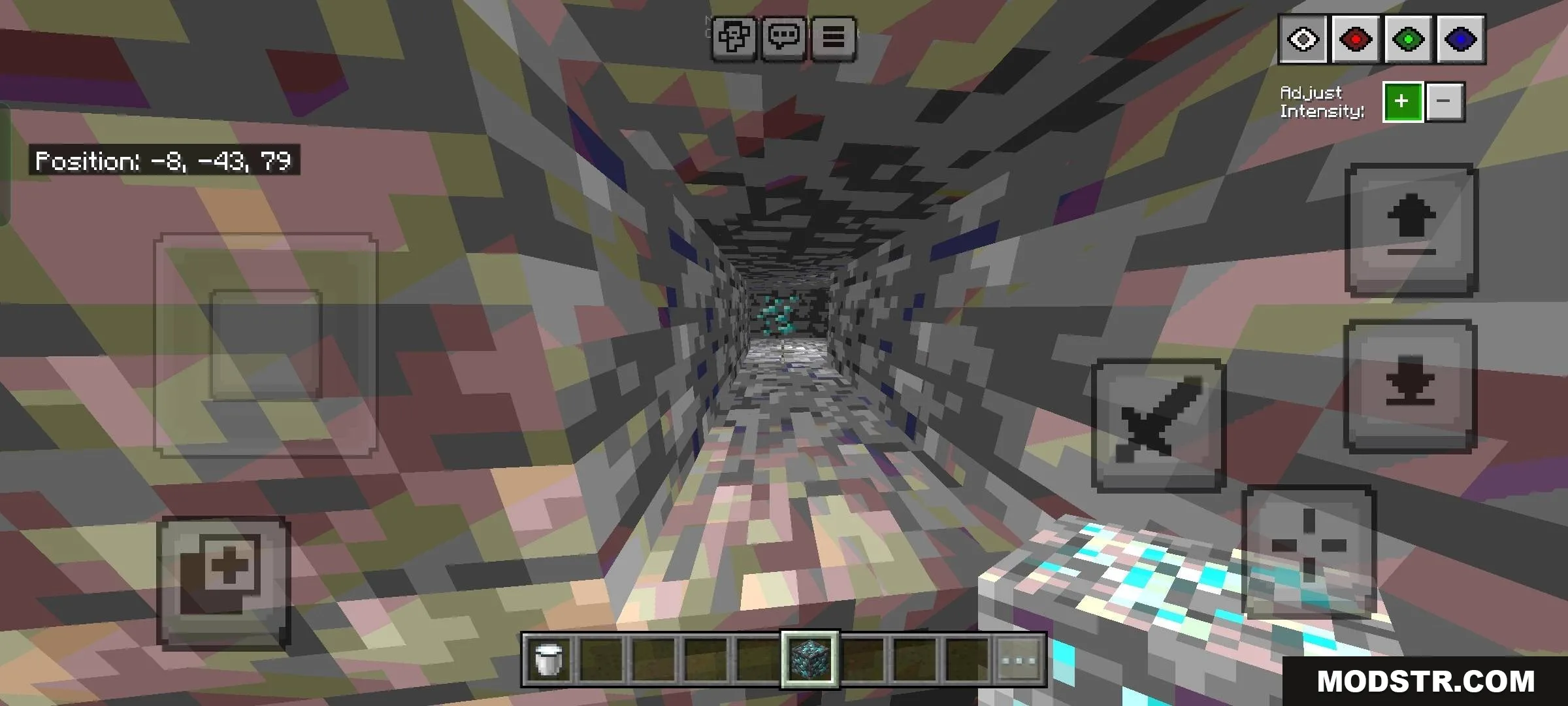
- Custom lighting menu displayed on screen for quick adjustments.
- Adjustable brightness levels controlled via arrow keys.
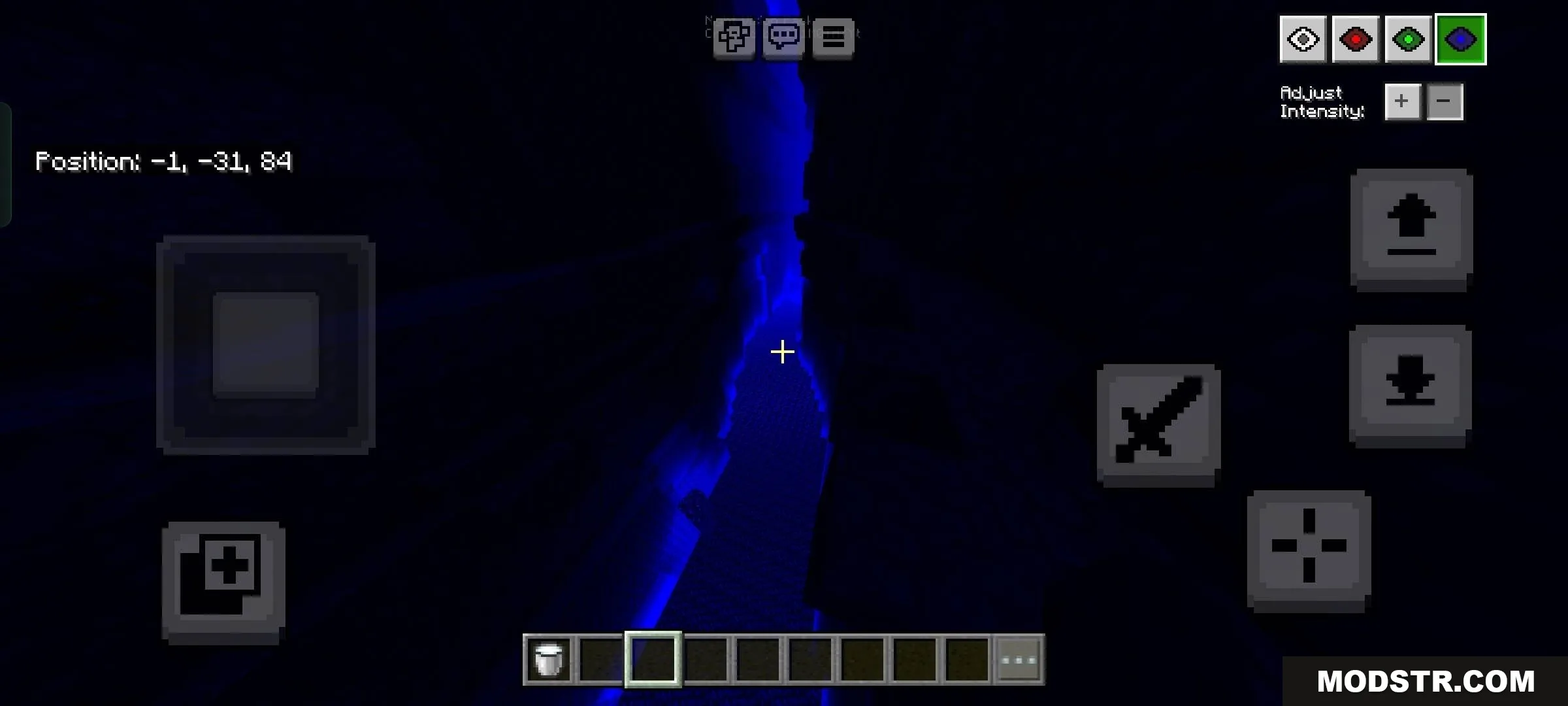
- Four color options selectable with number keys 1-4.
- Subpack variants to reposition the menu on your screen.
- Helps locate ores and navigate deep caves and ravines.
Controls
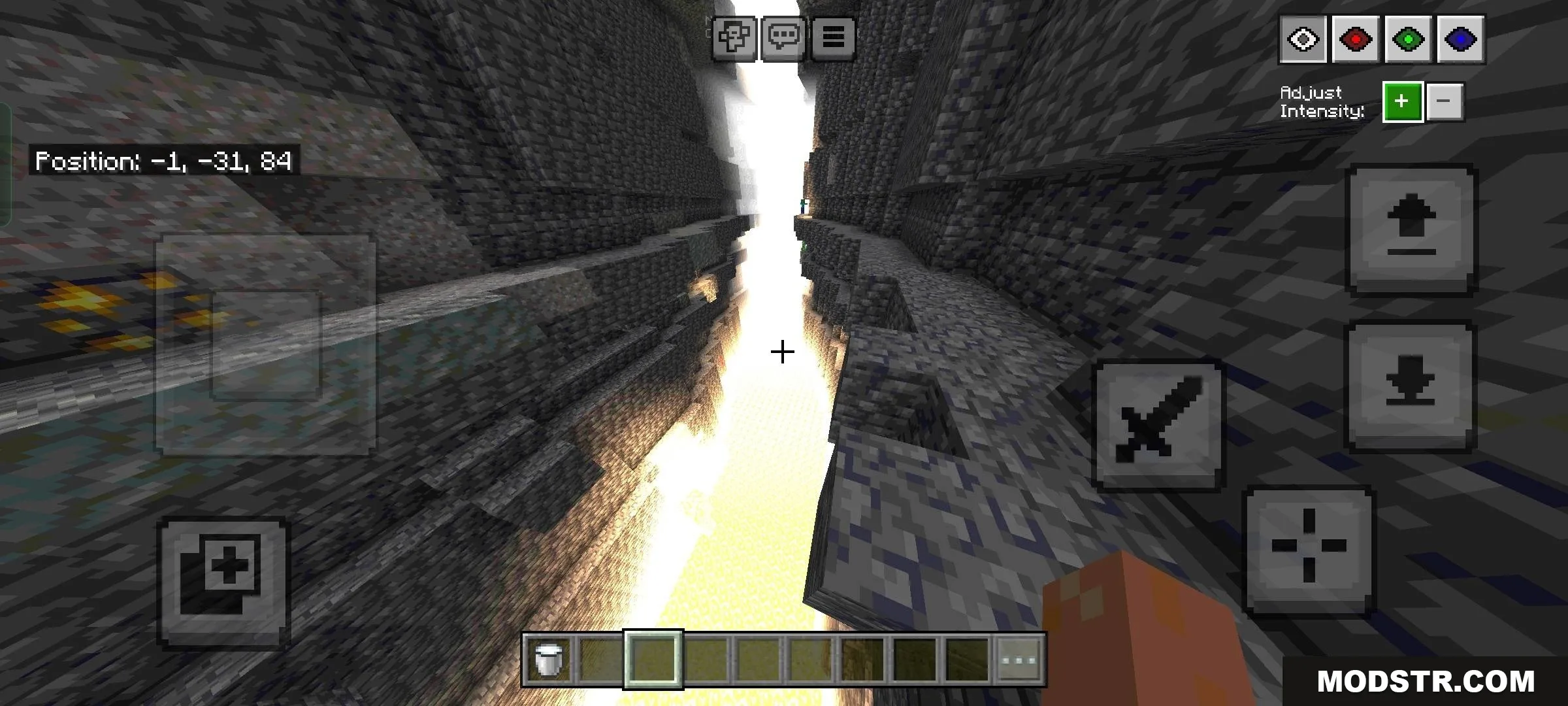
- Mobile: tap the eye button to open the menu.
- Keyboard: press F8 to open the menu.
- Use up and down arrow keys to change brightness levels.
- Press number keys 1-4 to switch between color options.
- Disable anti-aliasing in your graphics settings before using.
Installation
- Turn off anti-aliasing in your video settings.
- Download the shader pack for your version.
- Import the pack into your resource packs folder.
- Activate the pack in your world or world settings.
- Use F8 (keyboard) or the eye button (mobile) to open the menu.
Compatibility
This shader is compatible with Minecraft version 1.21 and works with render dragon on both mobile and desktop platforms.
DOWNLOAD FILES
- mcpack