
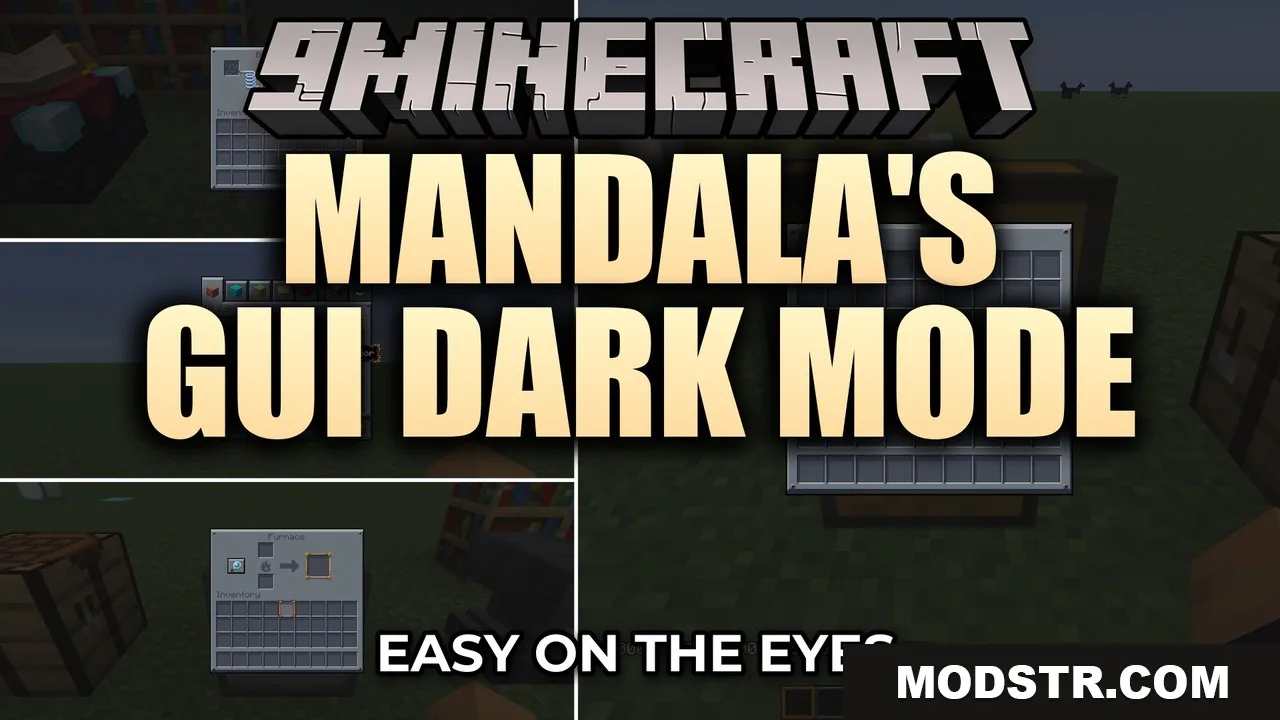
Mandala’s GUI Dark Mode 9minecraft Resource Pack (26.2) – Eye-Soothing Dark Mode Menus
A resource pack that converts all menus and UI elements to a dark blue-gray theme, reducing eye strain during gameplay while keeping textures vanilla.
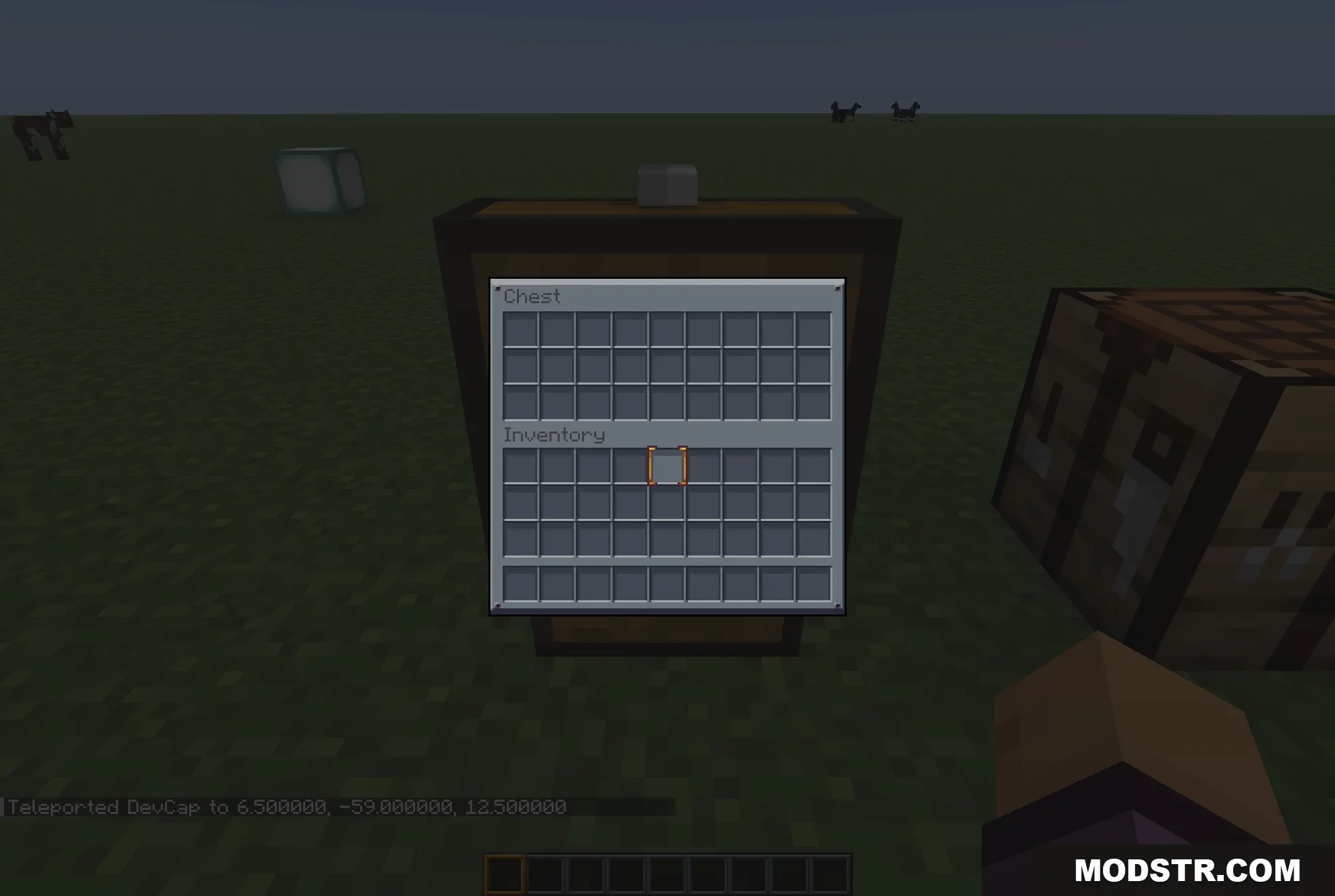
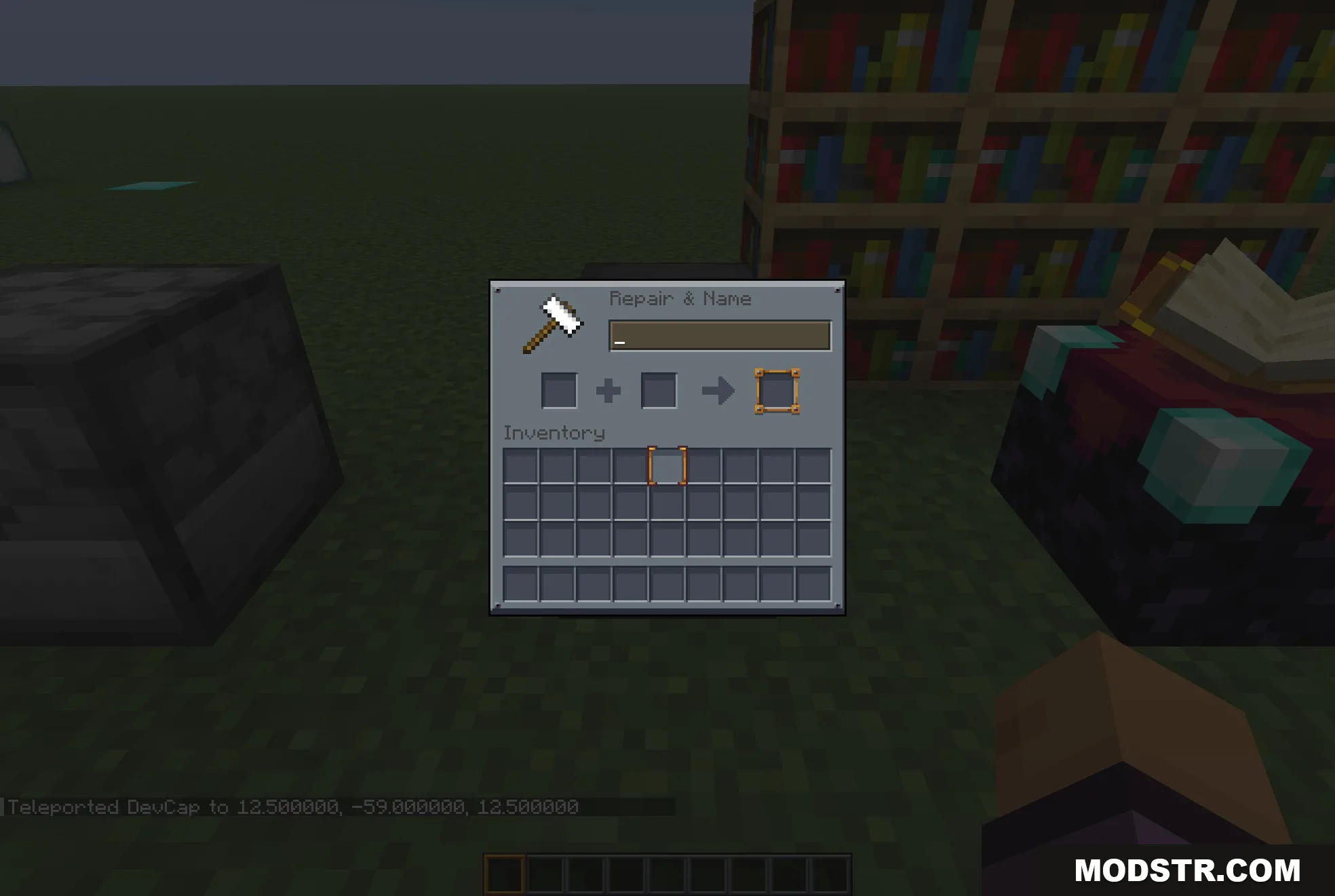
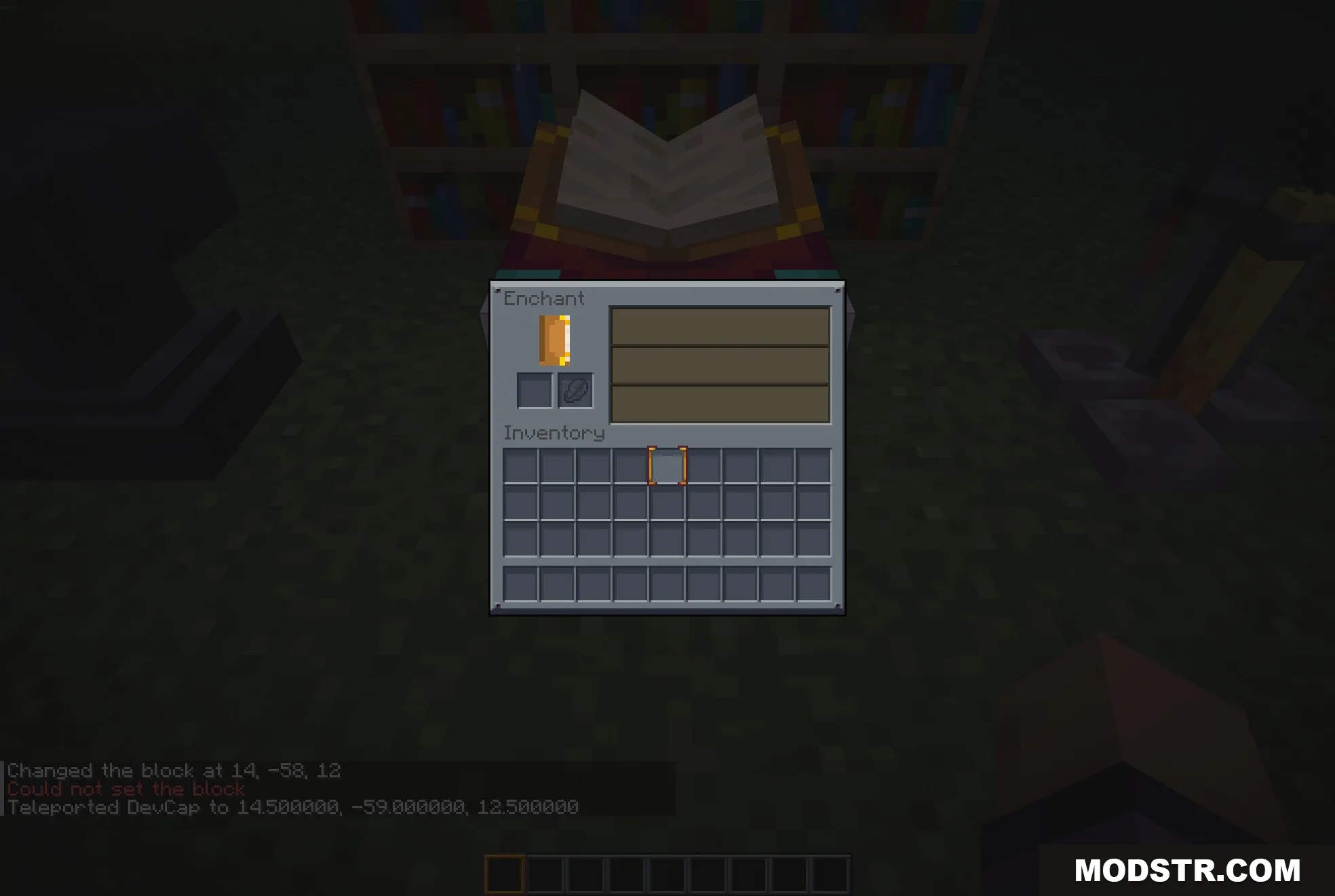
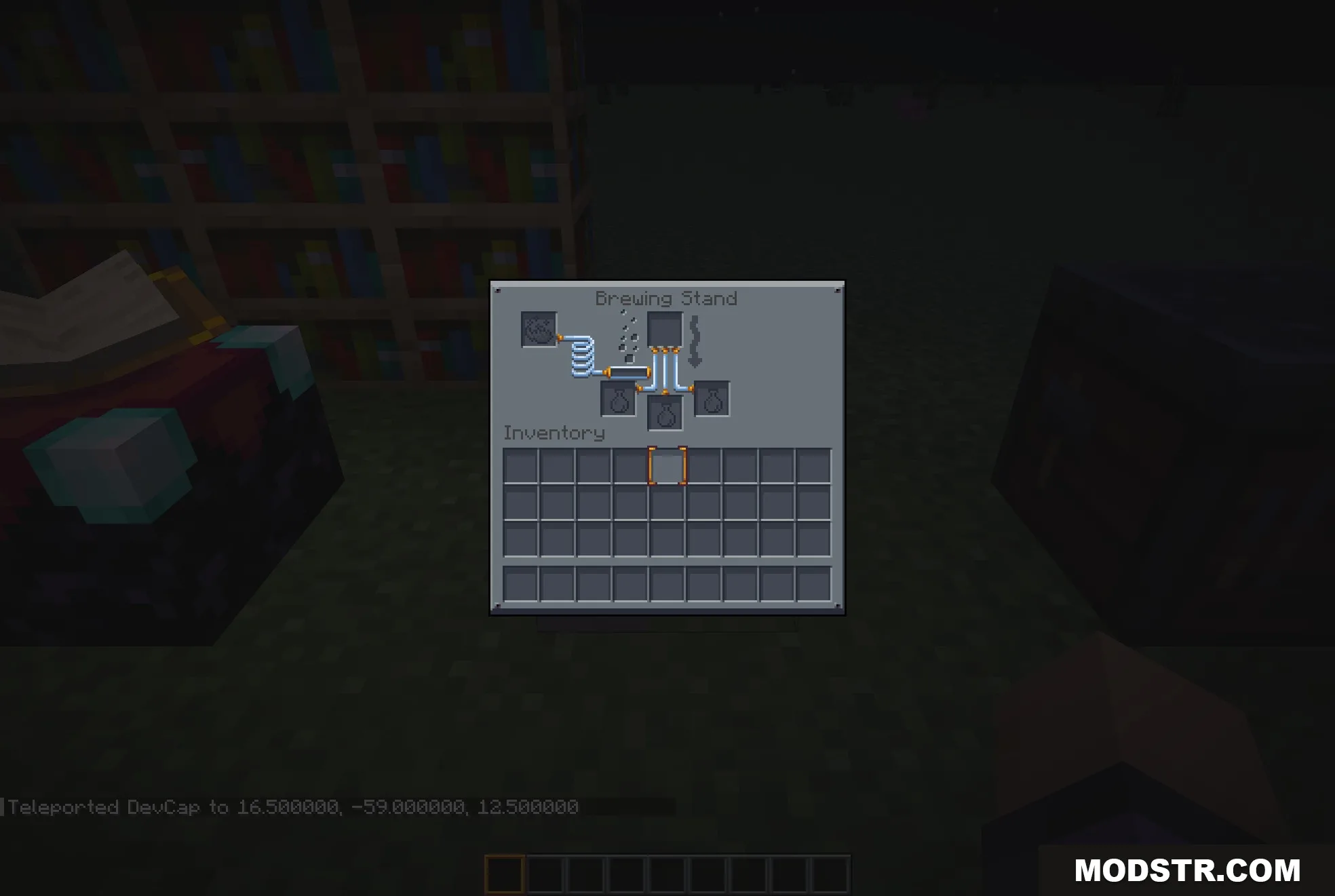
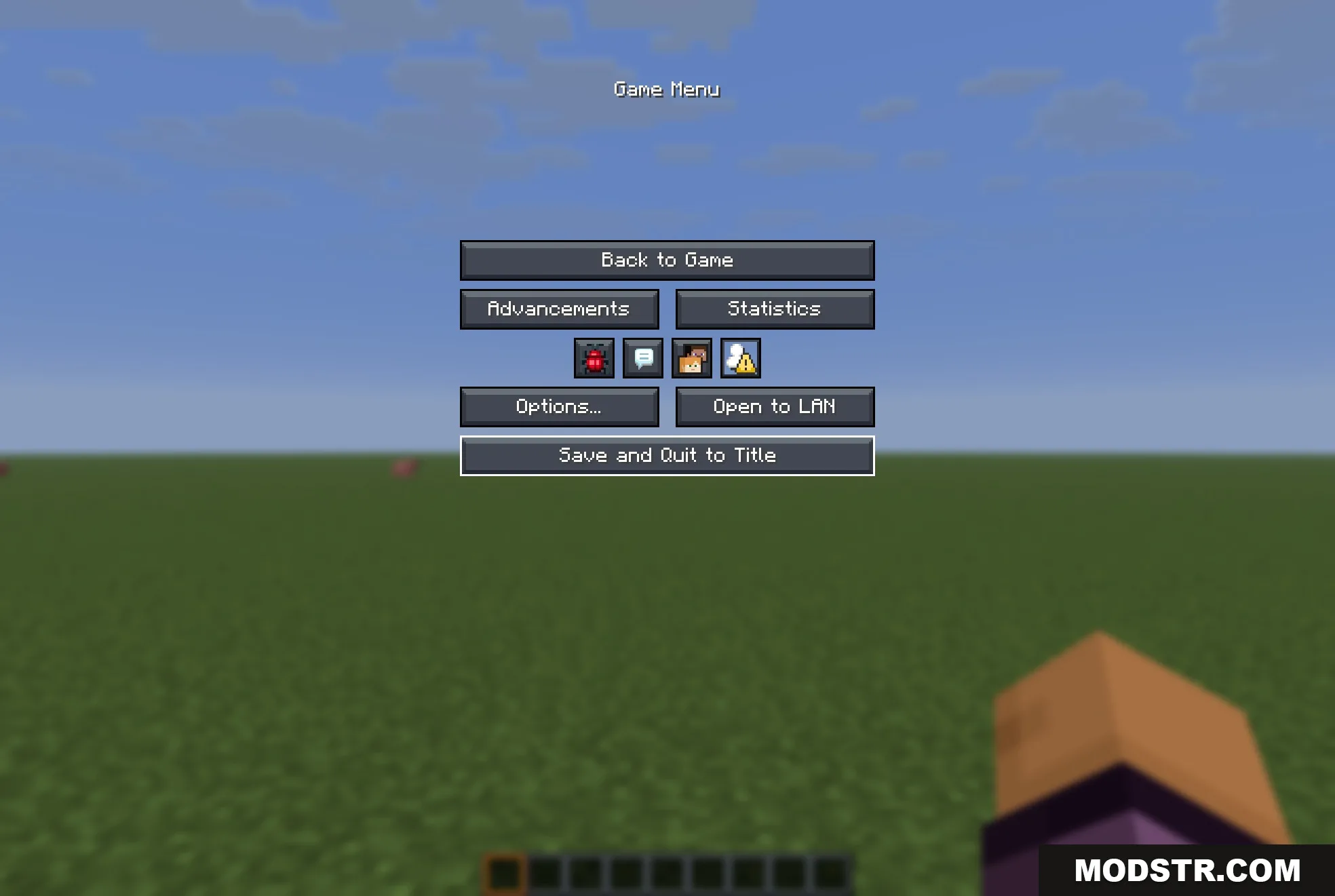
Mandala's GUI Dark Mode is a resource pack that replaces bright vanilla menus with dark blue-gray panels. It darkens inventory screens, containers, main menus, and all in-game UI elements while leaving your world textures unchanged. The pack works as an overlay on top of other texture packs and includes support for popular mods.
Features
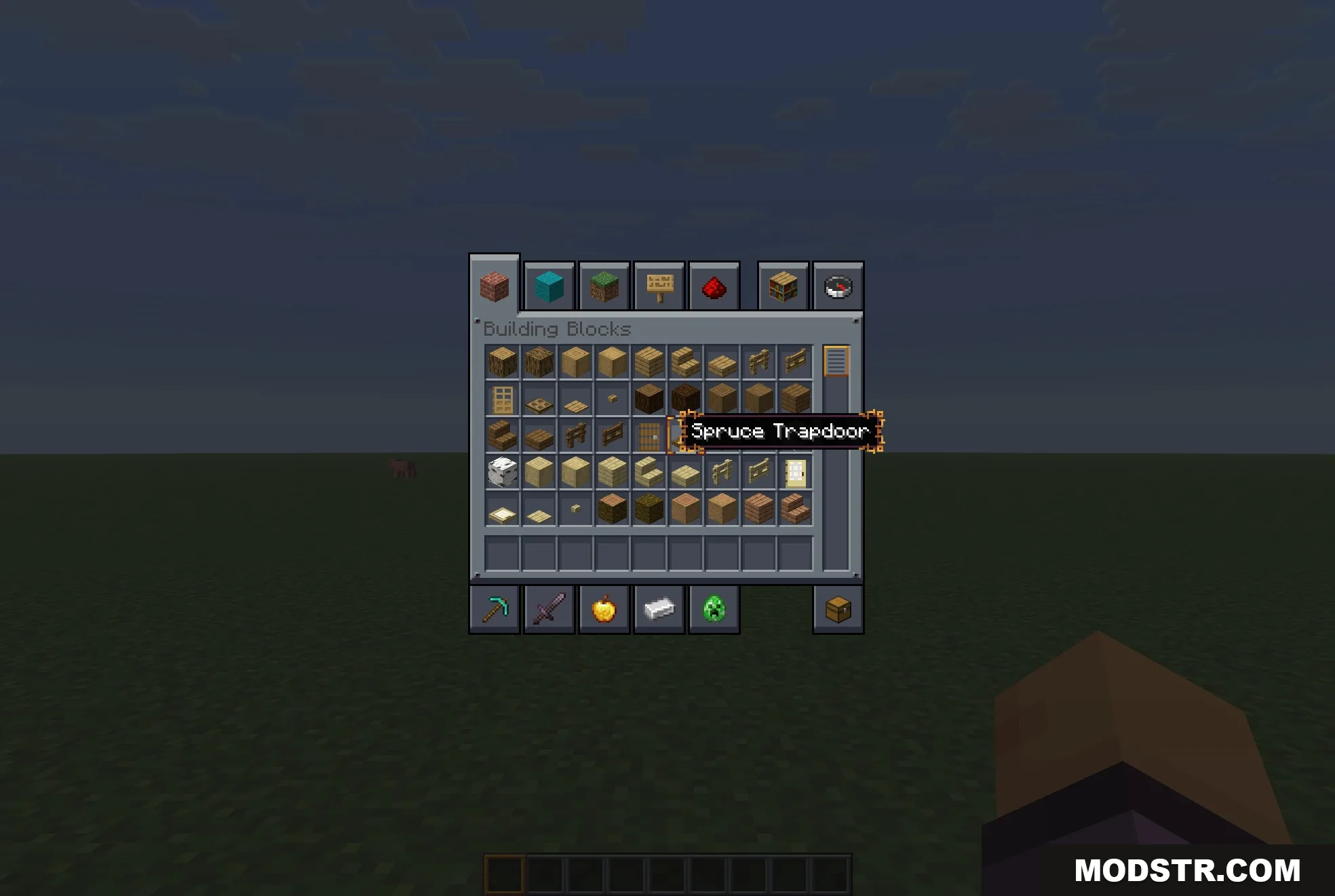
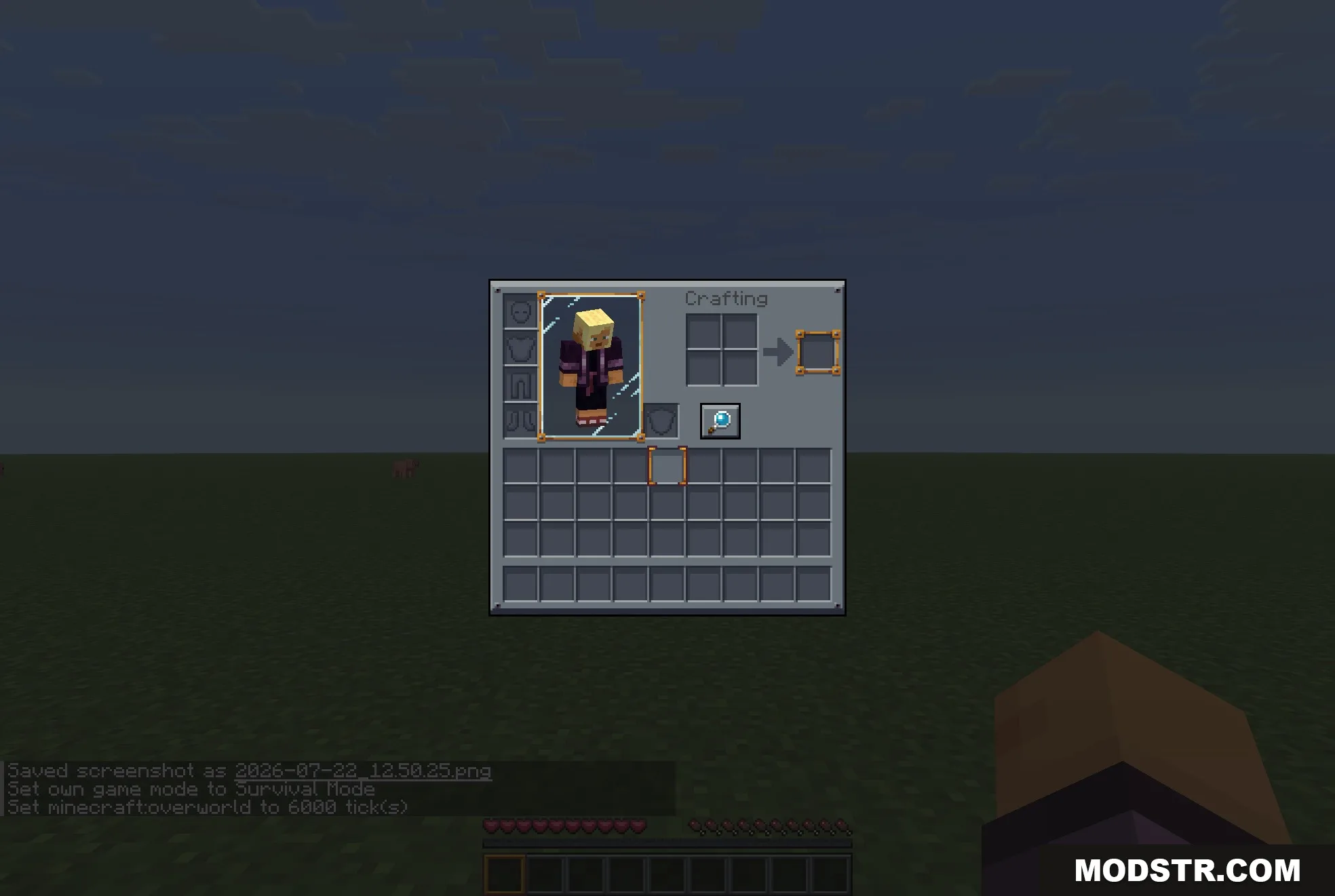
- Converts survival and creative inventory screens to flat dark panels.
- Uses a blue-gray color palette designed to reduce glare in low-light conditions.
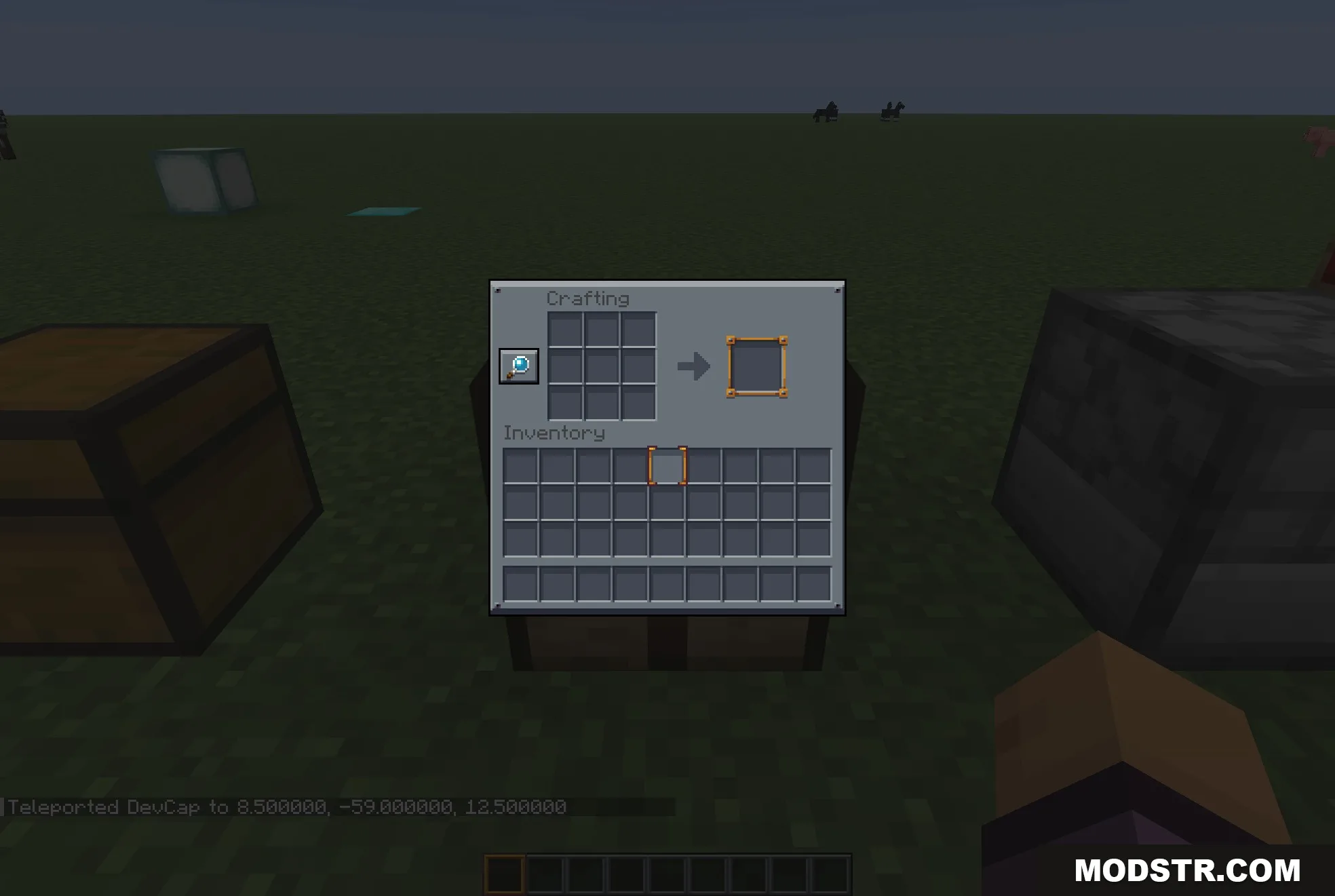
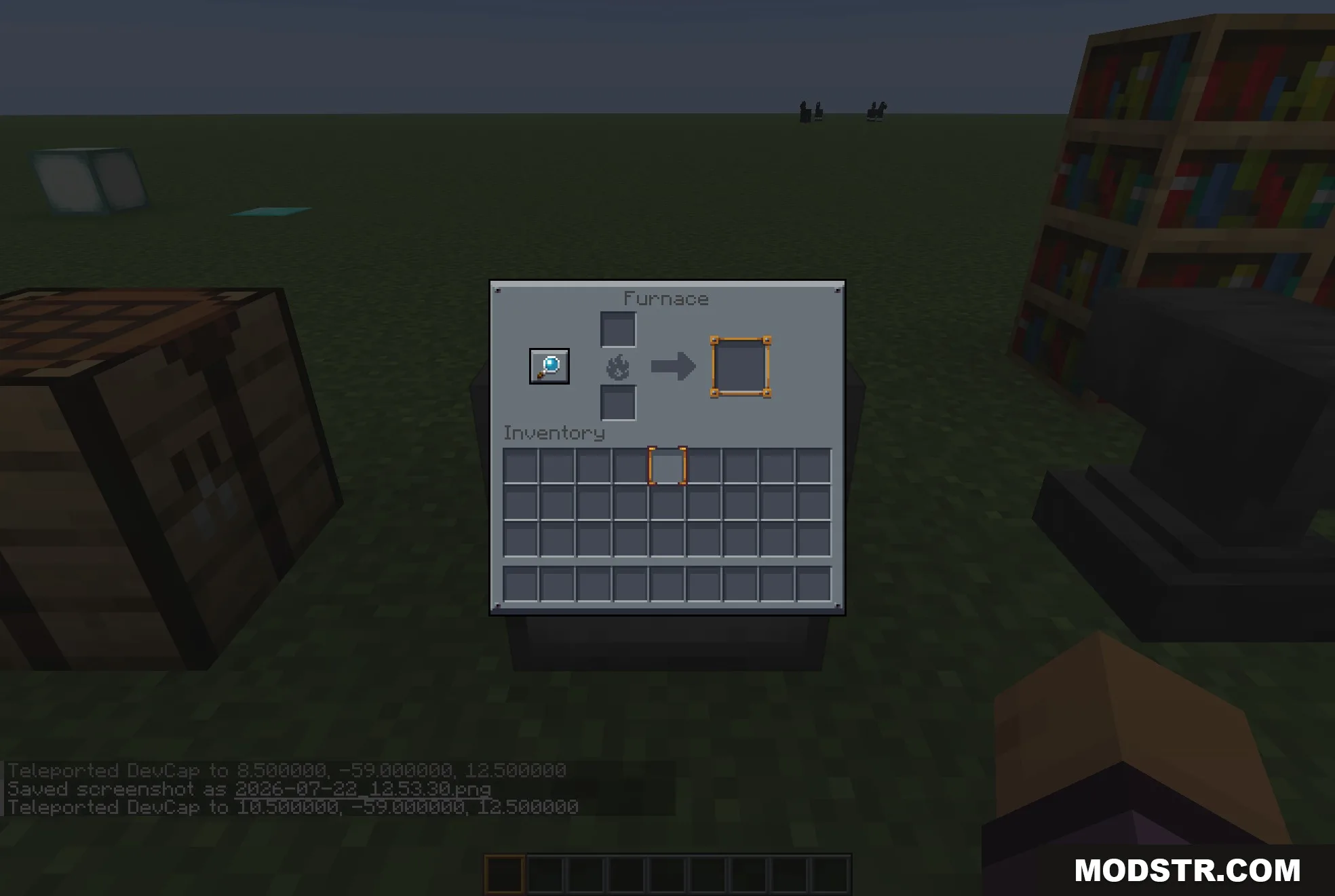
- Darkens all container screens including chests, furnaces, crafting tables, and brewing stands.
- Reskins main menu, world list, server selection, pause screen, and options menu with matching dark styling.
- Updates hotbar, health hearts, hunger icons, and experience bar with dark theme variants.
- Adds custom crosshair and empty-slot icons consistent with the dark aesthetic.
- Keeps all block and item textures vanilla unchanged.
- Compatible with most other texture packs.
- Includes themed menus for over 70 popular mods such as JEI, Jade, and Create.
- Styles specialized screens like the villager trading interface, stonecutter, and loom.
- Adds corner accent details to item tooltips.
- Recolors buttons, sliders, text fields, and scrollbars to match the dark theme.
Installation
- Download the resource pack file.
- Navigate to your Minecraft data folder and open the resourcepacks directory.
- Place the downloaded pack file into the resourcepacks folder without extracting it.
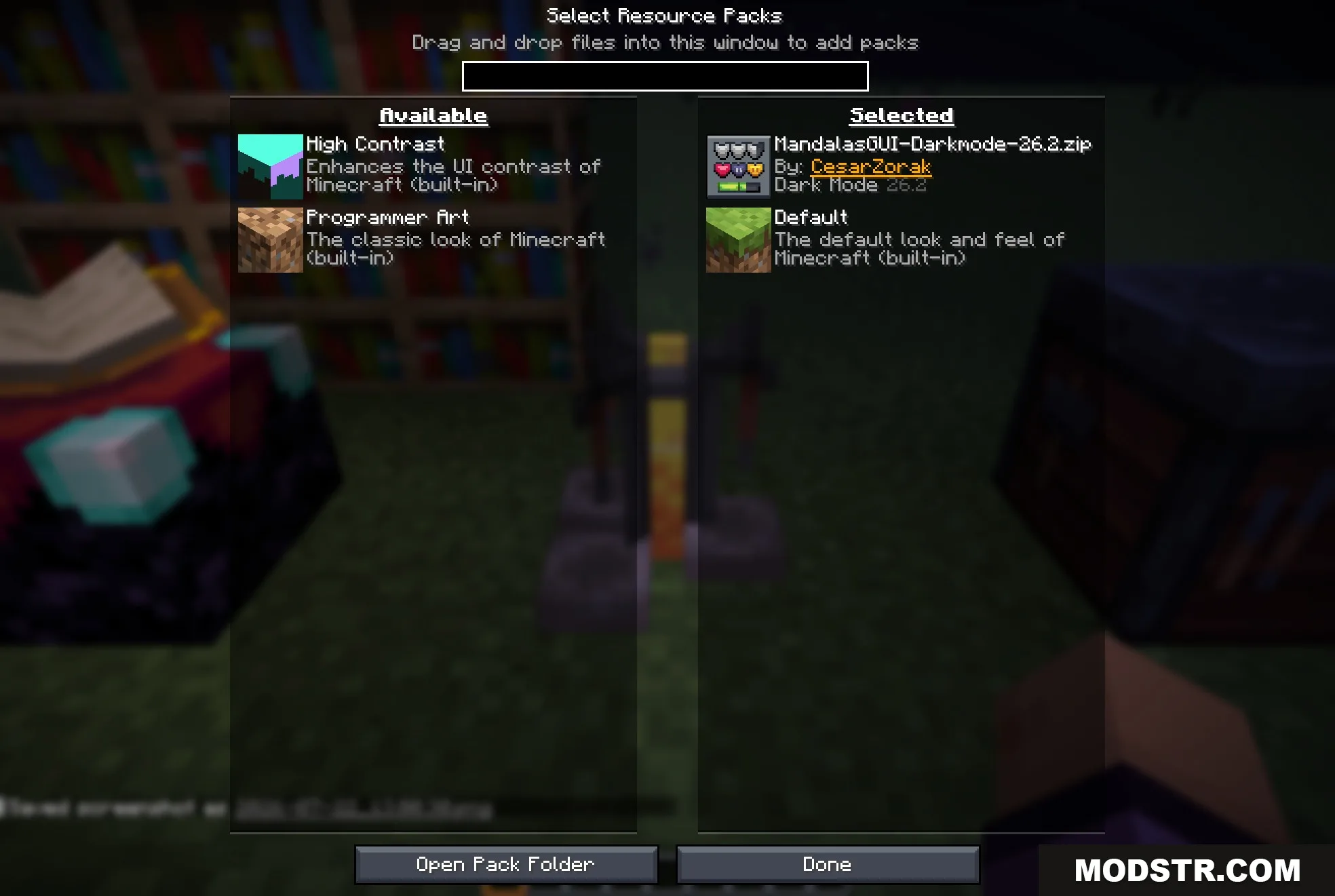
- Launch Minecraft and open Resource Packs in the options menu.
- Select Mandala's GUI Dark Mode from the available packs and click the arrow button to activate it.
DOWNLOAD FILES
- resource